
Photoshop gives you powerful sharpening controls, but halos appear quickly when radius, amount or contrast enhancement is too aggressive. If your goal is to sharpen photoshop image files for web, print, ecommerce or social media, the hard part is not adding sharpness, it is adding only enough sharpness to restore detail without outlining every edge. The safest approach is to work non-destructively, judge the photo at the right zoom level and apply sharpening selectively instead of across the whole frame.
This guide focuses on a practical Photoshop workflow: Smart Sharpen, masks, luminosity blending, High Pass when useful and final checks before export. If you want the same natural-looking result outside Photoshop, ImageSharpen also has a separate guide on how to sharpen a photo without making it look overedited.
Why Photoshop Sharpening Creates Halos
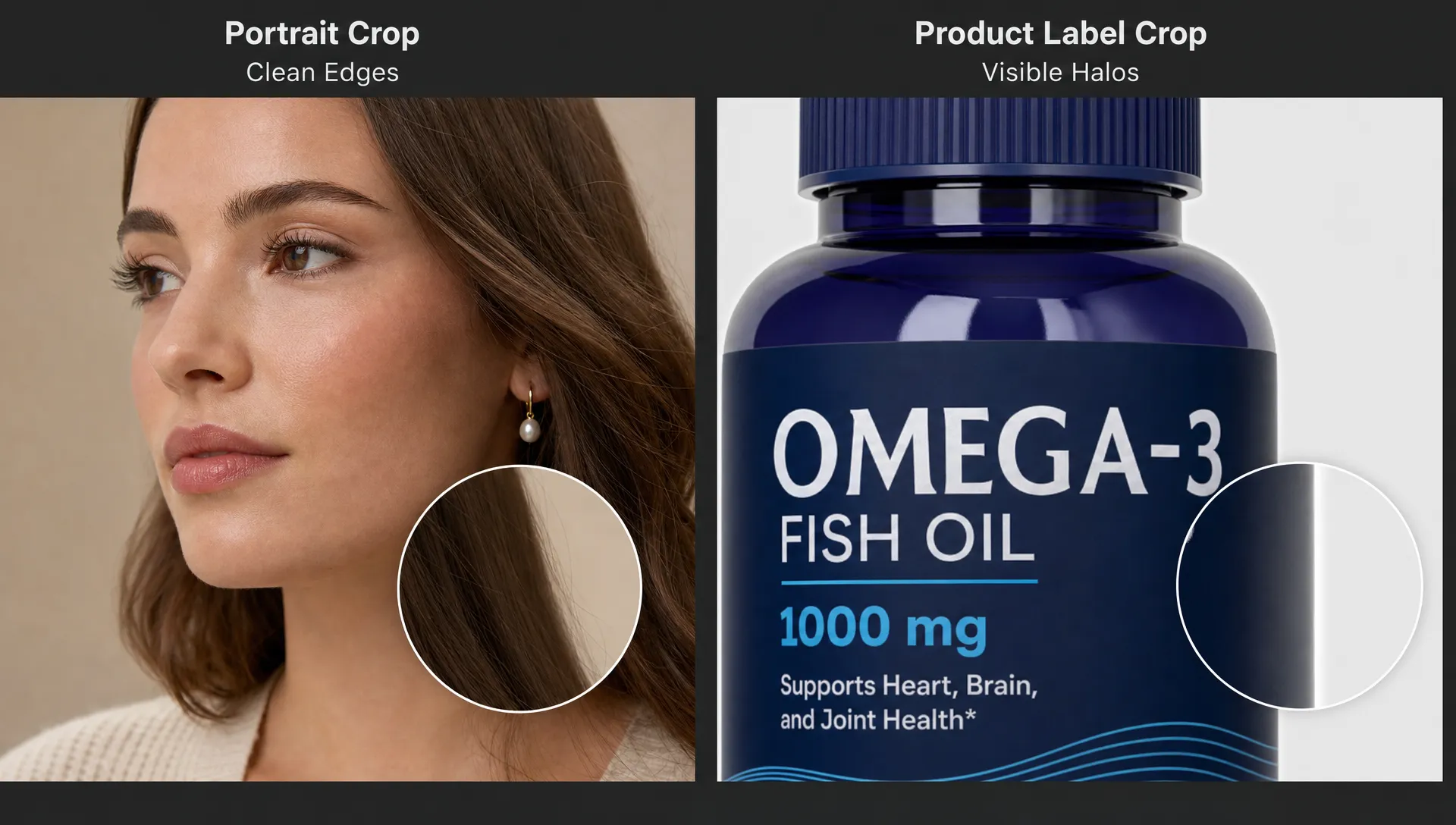
A sharpening halo is a bright or dark rim along an edge. You often see it around hair against a sky, a product against a white background, building edges, tree branches or text. The photo may look sharper at first glance, but the outline gives away the edit.
Most Photoshop sharpening tools work by increasing contrast around edges. That is useful because a slightly soft edge becomes more defined, but too much local contrast produces visible borders. A high radius spreads the effect too far from the edge. A high amount makes the light side lighter and the dark side darker. Sharpening the whole image also exaggerates noise, pores, fabric texture and compression artifacts.
The fix is not one magic setting. It is a workflow: sharpen late, use a small radius, mask smooth areas, preview at real size and treat different images differently. A portrait, a logo, a landscape and a product photo should not receive the same sharpening pass.
A Safe sharpen photoshop image Workflow Without Halos
Start by separating capture softness from output sharpening. Capture softness is the blur you are trying to improve. Output sharpening is the final crispness needed after resizing for a website, print file or social post. Mixing those two steps usually leads to overcorrection.
Use this baseline before touching any sharpening filter:
- Convert the layer to a Smart Object so your filter remains editable.
- View the image at 100 percent when judging halos and fine detail.
- Do major exposure, color and retouching adjustments before sharpening.
- Resize for the final output before the last sharpening pass.
- Compare before and after often, not just the sharpened version.
A careful sharpen photoshop image process is mostly restraint. If you can clearly see the sharpening effect from a normal viewing distance, you have probably gone too far.
Step 1: Prepare the File Non-Destructively
Open the photo in Photoshop and duplicate the background layer, or right-click the layer and choose Convert to Smart Object. A Smart Object lets you reopen the filter settings later instead of committing permanently.
If you are working from a RAW file, do basic noise reduction and lens correction in Camera Raw first. Noise reduction matters because sharpening cannot tell the difference between fine detail and digital noise unless you guide it. If you sharpen noisy shadows, the image may become gritty before it becomes clearer.
For portraits, finish skin cleanup first. For products, remove dust, scratches or sensor spots first. For logos and screenshots, check that the source file is not heavily compressed. Sharpening can improve edge definition, but it cannot fully rebuild detail destroyed by repeated JPEG compression.
Step 2: Use Smart Sharpen With Conservative Settings
For most photos, a controlled sharpen photoshop image pass in Smart Sharpen is cleaner than pushing general contrast or clarity sliders. Go to Filter > Sharpen > Smart Sharpen, then begin with a low radius and moderate amount.
Good starting points are not universal, but they keep you away from the most common halo settings:
| Image type | Starting radius | Starting amount | What to watch |
|---|---|---|---|
| Portrait | 0.3 to 0.7 px | 40 to 90 percent | Pores, eyelashes, hair edges |
| Product photo | 0.4 to 0.9 px | 60 to 120 percent | Cutout edges, labels, reflections |
| Landscape | 0.6 to 1.2 px | 50 to 110 percent | Tree branches, horizon lines, clouds |
| Small web image | 0.2 to 0.6 px | 40 to 100 percent | JPEG blocks, thin text, outlines |
Use Remove: Lens Blur when available, since it often gives a more controlled result than Gaussian Blur. Increase Reduce Noise if shadow areas or smooth backgrounds start to look rough. If the preview looks crisp only because every edge has a pale rim, lower the radius before lowering anything else.
Use Shadows and Highlights to Control Edge Rims
Smart Sharpen has advanced shadow and highlight controls in many Photoshop versions. These settings help reduce the sharpening effect in very bright or very dark transitions, where halos are easiest to see.
If bright halos appear around dark objects, increase the Fade Amount under Highlights. If dark outlines appear around bright objects, adjust the Shadows controls. Keep changes subtle. These controls are for trimming artifacts, not for rescuing an overly aggressive Amount and Radius combination.
Step 3: Mask Sharpening Away From Smooth Areas
A halo-free sharpen photoshop image workflow is usually selective. Smooth areas like skies, skin, studio backgrounds, bokeh and painted walls rarely need sharpening. Edges, eyes, product labels, fabric seams and important texture usually do.
After applying Smart Sharpen as a Smart Filter, click the filter mask. Paint with black on the mask to hide sharpening from areas that should stay smooth. Use a soft brush at low opacity so the transition is gradual. If you remove the effect with a hard-edged brush, you can create a different kind of visible edit.
For portraits, keep sharpening on eyelashes, eyebrows, lips, jewelry and clothing texture, but reduce it on cheeks, forehead and neck. For ecommerce photos, keep labels and product edges crisp, but reduce sharpening on plain backgrounds and glossy reflections.
Step 4: Set Sharpening to Luminosity to Reduce Color Fringes
Sharpening in normal blend mode can intensify color noise and chromatic fringes along high-contrast edges. Luminosity blending limits the sharpening effect mostly to brightness detail, which often looks cleaner.
If Smart Sharpen is applied as a Smart Filter, double-click the blending options icon beside the filter in the Layers panel and set the mode to Luminosity. You can also lower opacity there if the image still looks too crisp. If you applied sharpening to a duplicate layer instead, set that layer blend mode to Luminosity.
This will not fix every halo, because white and dark edge rims are usually contrast artifacts, not color artifacts. Still, Luminosity mode is a good safeguard when you sharpen photoshop image areas with colored edges, skin tones, neon signs, product packaging or noisy shadows.
Step 5: Use High Pass Only for Edge Contrast
High Pass sharpening can look excellent on hard-edged subjects, but it is easy to overdo. Duplicate the layer or use a Smart Object, then choose Filter > Other > High Pass. Start with a radius between 0.5 and 1.5 pixels for most web and product images. The preview should show thin edge detail, not thick glowing outlines.
Set the layer blend mode to Soft Light for a gentler effect or Overlay for a stronger one. Then lower opacity until the image looks naturally clearer rather than stylized. If the subject is architecture, labels, tools or textured objects, High Pass can be very useful. If the subject is skin, mist, sky or shallow-depth-of-field portraits, mask it carefully or skip it.
A high-pass sharpen photoshop image technique should never be judged while zoomed far out. At 25 or 33 percent, halos may disappear due to screen scaling, then show up later on the exported file.
Troubleshooting: Fix Halos You Already Created
If a sharpen photoshop image edit already has halos, do not keep stacking corrections on top. Reopen the Smart Filter if possible, or step back to the layer before sharpening. Then diagnose the artifact.
| What you see | Likely cause | Best fix |
|---|---|---|
| White rim around dark edges | Radius too high or highlights over-sharpened | Lower radius, reduce amount, fade highlights |
| Dark outline around bright edges | Shadow contrast pushed too hard | Adjust shadow fade, lower opacity, mask edge |
| Crunchy skin or fabric | Whole-image sharpening applied too strongly | Mask smooth areas, reduce amount, use lower radius |
| Colored fringes | Sharpening amplified color noise | Use Luminosity mode and reduce chroma noise first |
| Gritty background | Noise sharpened as detail | Add noise reduction, mask background, sharpen subject only |
| Jagged text or logo edges | Low-resolution source or compression | Start from a better file or upscale before sharpening |
For logos, tiny text and screenshots, sharpening has limits. If the source is severely pixelated, you may need upscaling, vector artwork or a cleaner export rather than stronger sharpening.
Export Checks That Prevent Last-Minute Halos
Before you call a sharpen photoshop image finished, test it at the size people will actually see. A file that looks good at 100 percent may be too sharp after a website compresses it. A print file may need a little more output sharpening than a social media image, but it still should not show edge rims on faces or product outlines.
Export a copy, then reopen that exported file in Photoshop or your browser. Check the high-contrast areas again. For web images, compare the final file at 100 percent and at its displayed size. If the export looks harsher than your working file, reduce the final sharpening layer opacity or sharpen after resizing to the exact pixel dimensions.
For ecommerce images, final sharpness is also a workflow issue. A catalog photo may travel from retoucher to marketplace upload to inventory teams, and those teams often depend on accurate visual records when coordinating freight forwarding and warehousing. Clean edges help prevent a product from looking damaged, mismatched or artificially cut out.
When Photoshop Is More Work Than You Need
Photoshop is ideal when you need layer masks, selective retouching and precise control. It may be more effort than necessary when you simply need to improve a soft image quickly.
If you want a browser-based option, ImageSharpen can sharpen blurry images, unblur photos and boost resolution up to 4x without installing software or signing up. It supports JPG, PNG and WEBP uploads, with files up to 20MB, and gives you a before and after preview before downloading.
A quick online pass is not a replacement for every sharpen photoshop image technique, especially when a file needs detailed masking. It is useful when you need fast clarity for social posts, client previews, product drafts or older photos. For a broader workflow, see this guide on how to improve image quality online without Photoshop.
Quick Checklist for Natural Photoshop Sharpening
Use this checklist before export:
- View the image at 100 percent before judging sharpness.
- Keep radius low, especially for web images and portraits.
- Sharpen important edges, not every smooth surface.
- Use layer masks to protect skin, sky, bokeh and backgrounds.
- Set sharpening layers or filters to Luminosity when color fringes appear.
- Lower opacity if the edit looks obvious.
- Recheck the exported file, not only the Photoshop document.
The cleanest result is usually the one where the viewer notices the photo, not the sharpening.
Frequently Asked Questions
What causes halos when sharpening in Photoshop? Halos happen when sharpening increases edge contrast too much. A high radius spreads the effect outward, and a high amount makes the bright and dark sides of an edge more obvious.
Is Smart Sharpen better than Unsharp Mask? Smart Sharpen usually gives more control because it includes blur removal options, noise reduction and shadow or highlight adjustments. Unsharp Mask is still useful for quick output sharpening when you use a low radius and add threshold carefully.
Should I sharpen before or after resizing? Do creative retouching and cleanup before resizing, but save final output sharpening until after the image is resized for its destination. This helps you avoid halos caused by sharpening detail that later gets compressed or scaled.
What is the best way to sharpen photoshop image files for portraits? Keep the radius low, sharpen eyes and hair selectively, mask skin texture and reduce the opacity until the result looks natural. Portrait halos are especially visible around hair, shoulders and facial contours.
Can AI sharpening replace Photoshop sharpening? AI sharpening can be faster for everyday blur and low-resolution photos, especially when you do not need manual masks. Photoshop is better when you need precise local control, compositing or professional retouching.
Try a Faster Way to Improve a Soft Photo
If you need clean sharpness without spending time on layers and filter settings, try ImageSharpen in your browser. Upload a JPG, PNG or WEBP file, preview the improvement and download a clearer result with no signup required.
Use Photoshop when you need detailed control. Use ImageSharpen when you need a fast, natural-looking enhancement and want to avoid the most common over-sharpened look.