
Finding the best photo sharpening app is harder than it should be because every app promises clearer photos, but not every tool handles blur the same way. Some are better for quick AI fixes, some give you manual control and some are only useful if you already understand editing settings like sharpness, structure, clarity and noise reduction.
This guide compares the best free photo sharpening apps for iPhone and Android based on real-world use cases: blurry selfies, soft product photos, screenshots, travel shots, social posts and old pictures that need a little extra definition. The goal is not to crown one app for everyone, but to help you choose the right free option for the photo in front of you.
What makes the best photo sharpening app worth using?
A useful sharpening app should improve edge detail without making the photo crunchy, grainy or artificial. Good sharpening is subtle. It restores definition around faces, text, objects and textures while preserving a natural look.
The best photo sharpening app for most people should meet a few practical standards. It should be easy to use on a phone, process images quickly, support common formats like JPG and PNG and let you export a clean result without forcing a complicated workflow. If the app uses AI, it should also give you a preview so you can check whether the enhancement looks realistic before downloading.
There is also a difference between sharpening and full photo enhancement. Sharpening mainly improves perceived detail. Enhancement may also brighten the image, increase resolution, reduce noise or improve contrast. If your photo is very low resolution, a tool that combines sharpening with upscaling is usually more helpful than a basic sharpness slider.
Quick comparison of free photo sharpening apps
The apps below are free to try or free to use, but their limits vary. Some are fully browser-based, while others are mobile apps with optional paid upgrades.
| App or tool | Best for | Main strength | Watch out for |
|---|---|---|---|
| ImageSharpen | Fast AI sharpening on any phone | No signup, browser-based, 4x resolution boost | Internet connection required |
| Snapseed | Manual edits and natural sharpening | Free app with strong detail controls | Requires a little editing judgment |
| Adobe Lightroom Mobile | Photographers and RAW-style editing | Precise sharpening and noise controls | Some features require a paid plan |
| Apple Photos and Google Photos | Quick built-in fixes | Already on most phones | Less powerful for serious blur |
| Picsart | Social media edits | Creative tools plus sharpening | Free version may include limits or ads |
| PhotoDirector | All-in-one mobile enhancement | AI-style editing options | Interface can feel busy |
| Remini | Portrait enhancement | Strong face-focused AI results | Free use may be limited by ads or credits |
For a simple blurry photo, start with an AI tool. For a good photo that only needs a small refinement, a manual editor like Snapseed or Lightroom Mobile may give a more natural result.
1. ImageSharpen, best free browser-based option
ImageSharpen is a strong first choice if you want the best photo sharpening app experience without actually installing another app. It works directly in your mobile browser, so iPhone and Android users can upload a blurry image, sharpen it with AI and download the improved version without creating an account.
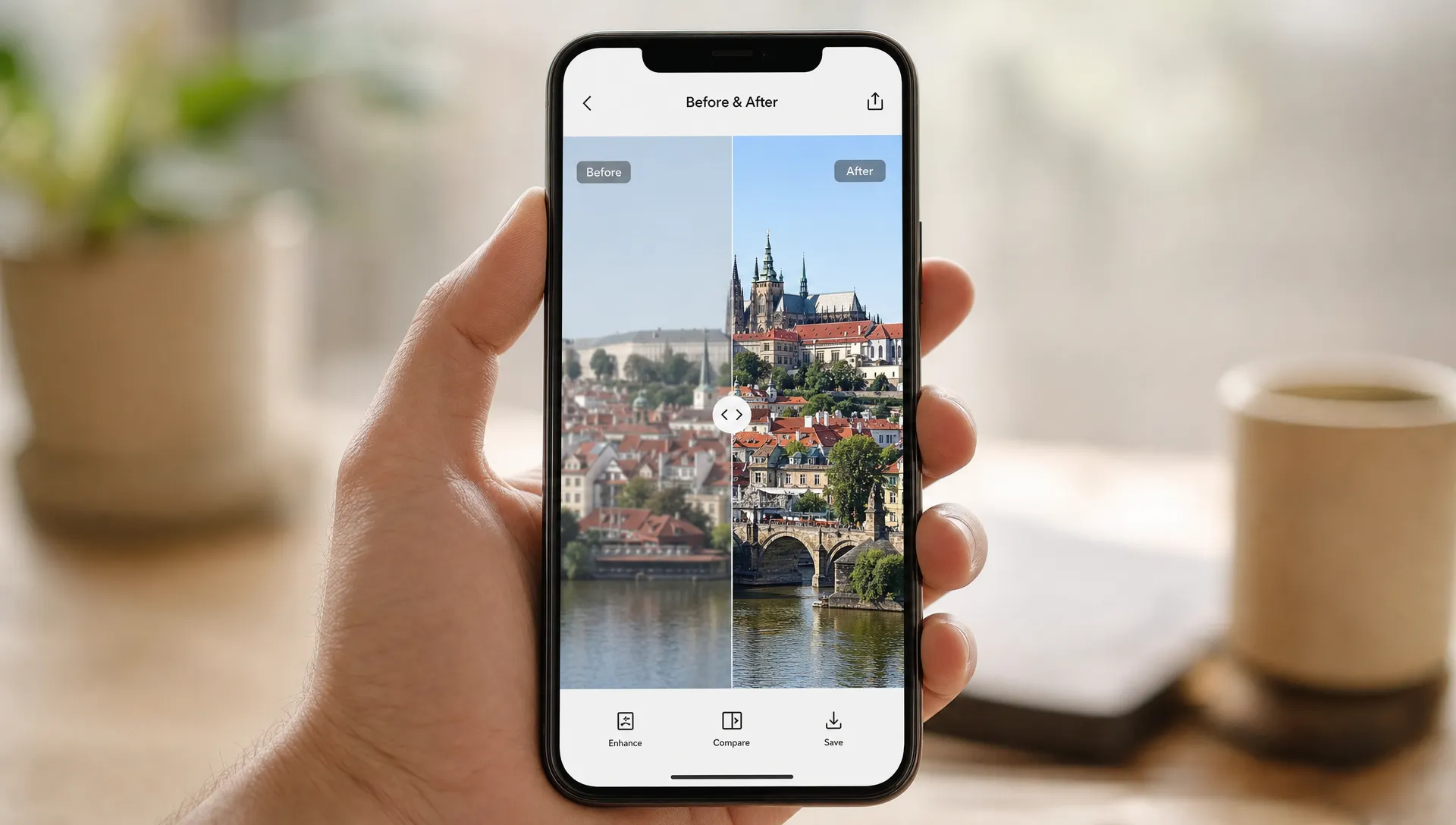
The biggest advantage is speed. ImageSharpen is designed for quick fixes, with fast processing, before and after preview, high-quality downloads and support for JPG, PNG and WEBP files. It can also boost resolution up to 4x, which helps when the original photo looks soft because it is small, compressed or cropped too tightly.
Use ImageSharpen when you want to fix:
- Slightly blurry portraits or selfies
- Product photos that need clearer edges
- Social media images before posting
- Old photos that look soft after scanning
- Screenshots where text is hard to read
Because it is browser-based, it is also convenient if you switch between devices. You can start on an iPhone, Android phone, tablet or laptop without learning a new interface each time. If you want a dedicated walkthrough, this guide on how to sharpen an image online for free explains the basic upload, enhance and download process.
2. Snapseed, best for manual control
Snapseed remains one of the most useful free mobile editors for people who want hands-on control. Its Details tool lets you adjust structure and sharpening, which can make textures, edges and small visual elements stand out more clearly.
The best photo sharpening app is not always the most automated one. If your photo is already good but slightly soft, Snapseed can be better than heavy AI enhancement because you decide how much sharpening to apply. This is especially useful for landscapes, food photos, architecture, pet photos and images where texture matters.
The trick with Snapseed is restraint. Increase sharpening slowly and zoom in before saving. Too much structure can make skin look rough, skies look noisy and backgrounds look unnatural. If you see halos around objects or speckled grain in flat areas, reduce the effect.
Snapseed is a good fit if you enjoy editing and want a free app that does more than sharpening. It is less ideal if you want a one-tap AI fix for a photo that is seriously blurred.
3. Lightroom Mobile, best for photographers
Adobe Lightroom Mobile is a better choice for users who already think in terms of exposure, contrast, highlights, shadows, noise reduction and detail. Its sharpening controls are more technical than the average mobile editor, which makes it powerful but slightly less beginner-friendly.
Lightroom is particularly useful when a photo has both softness and noise. If you sharpen a noisy image without reducing noise, the grain becomes more obvious. Lightroom lets you balance the two, which matters for night photos, indoor shots and images taken with older phones.
For casual users, Lightroom may feel like too much for a simple blur fix. For photographers, creators and small business owners, it offers more precision than most free tools. Some Adobe features require a subscription, so check what is available in the free version before building your workflow around it.
4. Apple Photos and Google Photos, best for quick built-in fixes
Sometimes the most convenient sharpening tool is already on your phone. Apple Photos on iPhone and Google Photos on Android both include basic editing controls that can make a slightly soft photo look better. Depending on your device and app version, you may see options related to sharpness, definition, pop, clarity or enhancement.
These built-in editors are not usually the best photo sharpening app choice for difficult blur, but they are good enough for small improvements. If your image only needs a touch more contrast or definition before sending it to a friend, the built-in editor is often the fastest route.
Use built-in tools when the photo is almost clear already. Avoid relying on them for motion blur, low-resolution crops or old compressed images because basic sliders cannot reconstruct missing detail as well as AI tools.
If you mainly shoot on iPhone, you may also find this step-by-step guide to fix blurry photos on iPhone helpful. Android users can follow a similar device-specific workflow in this guide to fix blurry photos on Android.
5. Picsart and PhotoDirector, best for social and creative edits
Picsart and PhotoDirector are useful if sharpening is only one part of your editing process. Both are known for broader creative editing, such as filters, effects, background tools, stickers, retouching and social-ready exports.
These apps make sense when you are preparing an image for Instagram, TikTok, Facebook Marketplace, a profile photo or a promotional post. You can sharpen the image, adjust color, crop for the right platform and add finishing touches in one place.
The tradeoff is simplicity. Creative editing apps can feel busy if all you want is a clean, sharper photo. Free versions may also include ads, export limits or premium prompts depending on your device, country and app version.
For product or lifestyle images, sharpening can make a noticeable difference. A clear photo helps viewers evaluate surfaces, edges and materials, whether you are photographing handmade items, electronics or larger home upgrades. Retailers that sell visually detailed products, such as premium saunas and hot tubs, show why sharp product imagery matters when people need to compare finishes, features and build details before buying.
6. Remini, best for face-focused AI enhancement
Remini is often used for portraits, old family photos and face enhancement. It can produce dramatic improvements when the main problem is a soft or low-detail face, especially in older images or compressed social media downloads.
That said, the best photo sharpening app for faces is not always the best app for every type of image. Face enhancement tools may over-smooth skin, alter facial details or make backgrounds look inconsistent. Always compare the before and after closely, especially if the photo has sentimental value or needs to remain realistic.
Remini is worth trying for portraits, but it should not be your only sharpening tool. For screenshots, landscapes, product photos or text-heavy images, use a tool built for general image clarity instead.
How to choose the right free sharpening app
The right choice depends on what went wrong with the photo. A soft image from slight camera shake needs a different fix than a tiny image enlarged from a social media download.
If you want the best photo sharpening app for everyday use, choose based on your workflow rather than app-store popularity. A browser-based AI sharpener is ideal when you want speed and simplicity. A manual editor is better when you care about fine control. A creative app works when sharpening is part of a larger design or social media edit.
Use this simple decision path:
- Choose ImageSharpen if you want a fast AI result with no signup or installation
- Choose Snapseed if you want natural manual sharpening for free
- Choose Lightroom Mobile if you understand editing controls and want precision
- Choose Apple Photos or Google Photos if the photo only needs a tiny boost
- Choose Picsart or PhotoDirector if you also need social design features
- Choose Remini if the main subject is a blurry face
One practical tip: save a copy of the original photo before editing. Sharpening changes pixels, and if you overdo it, the edited image can look worse than the original.
Tips for better sharpening results on iPhone and Android
Even the strongest app cannot fix every blurry image. Severe motion blur, heavy compression and out-of-focus photos may not contain enough real detail to fully restore. AI can estimate missing detail, but it cannot guarantee a perfect reconstruction.
To get better results from the best photo sharpening app you choose, start with the highest-quality version of the image. Avoid screenshots of photos when you still have the original file. Do not crop too much before sharpening because a tiny crop gives the app fewer pixels to work with. If the image is dark or noisy, improve exposure gently before sharpening or use a tool that handles enhancement and resolution together.
After sharpening, check the photo at normal viewing size and zoomed in. At normal size, the image should look clearer. Zoomed in, edges should still look believable. If hair, text, grass or fabric starts looking harsh, the sharpening is too strong.
For social media, sharpen before uploading rather than after downloading from the platform. Apps like Instagram, Facebook and messaging platforms can compress images, which may reduce clarity again.
Frequently Asked Questions
What is the best free photo sharpening app for iPhone? For the easiest free option, ImageSharpen works well in Safari without installation or signup. If you want manual editing controls, Snapseed is a strong iPhone app for adjusting sharpness and structure.
What is the best free photo sharpening app for Android? ImageSharpen is a good Android choice because it works in a mobile browser and supports fast AI sharpening. Snapseed is also excellent if you prefer manual control over the final look.
Can a sharpening app fix a completely blurry photo? Not always. The best photo sharpening app can improve many soft images, but severe motion blur or an image that was badly out of focus may only be partially recoverable.
Is AI sharpening better than manual sharpening? AI sharpening is usually better for beginners and low-resolution images because it can enhance detail and sometimes upscale the photo. Manual sharpening is better when you want subtle control and a natural result.
Will sharpening reduce image quality? Good sharpening can improve perceived quality, but too much sharpening creates halos, grain and harsh edges. Always preview the result before saving and keep the original file.
Try a fast free AI sharpener first
If you want the quickest starting point, open ImageSharpen on your iPhone or Android browser, upload your blurry photo, preview the result and download the sharper version. It is free to use, requires no signup and works well when you need a clear result without learning a full editing app.