
Photoshop is powerful. It is also expensive, complicated, and complete overkill if all you need to do is make a blurry photo look sharper.
Most people who open Photoshop to fix image quality spend 20 minutes figuring out which tool to use, apply the wrong filter, and end up with something that looks worse than when they started. There is a better way.
You Do Not Need Photoshop for This
If your goal is to improve the clarity, sharpness, or overall quality of an image, a free AI tool does the job faster and with better results than Photoshop’s built-in sharpening filters.
Go to ImageSharpen.com, upload your image, hit Enhance, and download the result. Free, no account needed, takes about 15 seconds, and let the AI do the magic.
That is the short answer. Here is everything else worth knowing.
Why Photoshop Falls Short for This
Photoshop has been the default answer for image editing for decades, but its sharpening tools have a fundamental limitation. They work by increasing contrast along edges in the image. This makes things look sharper but does not actually recover missing detail.
The result is often an image with harsh edges, unnatural halos around objects, and a processed look that is immediately obvious.
AI image enhancement works differently. The model has been trained on millions of images and has learned what fine detail actually looks like across different types of photos. When you upload a blurry image, it reconstructs the missing detail intelligently rather than just cranking up the contrast on existing edges.
The results are cleaner, more natural, and require zero manual skill to achieve.
Step by Step: How to Improve Your Image Quality Online
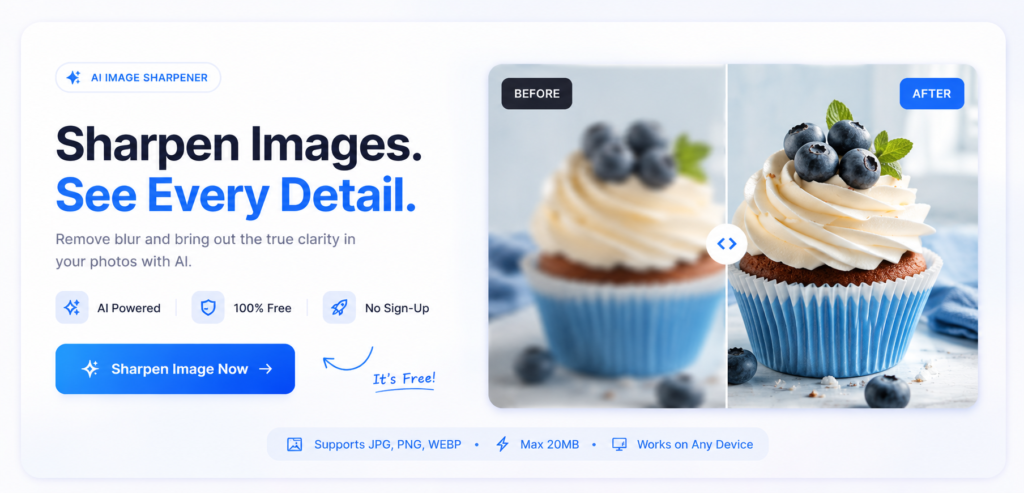
- Save your image to your phone or computer
- Go to ImageSharpen.com
- Drop the image into the upload area or click to browse
- Hit Enhance Image
- Use the before and after slider to see the difference
- Download your improved image
Works on desktop and mobile. Supports JPG, PNG, and WEBP up to 20MB. No sign-up required.
What Kinds of Images Can You Improve?
Almost anything benefits from AI enhancement, but some types see more dramatic results than others.
Personal photos. Portraits, family shots, event photos that came out slightly soft. Faces respond particularly well because AI has been trained extensively on human features.
Product photos. Blurry product images are one of the most common use cases. Texture, edges, and fine detail all improve significantly.
Screenshots. Compressed screenshots from social media, WhatsApp, or downloaded from websites. AI sharpening recovers the detail that compression removed.
Old or scanned photos. Analogue photos that have been scanned often lose sharpness in the scanning process. AI enhancement recovers a lot of what gets lost.
Document images. Photos of documents, receipts, business cards, or anything with text. Sharpening makes text more legible and edges cleaner.
Free Online Tools vs Photoshop vs Mobile Apps
Here is an honest breakdown.
Photoshop is best for complex, multi-step editing where you need full manual control. For simple sharpening and quality improvement, it is overkill and its results are not as good as AI tools for this specific task.
Mobile apps like Snapseed or Lightroom Mobile have sharpening sliders that work similarly to Photoshop. Better than nothing but still limited to contrast-based sharpening rather than true AI reconstruction.
Free AI tools like ImageSharpen.com are purpose-built for exactly this job. No learning curve, no subscription, and the output quality is genuinely better for sharpening and clarity improvement specifically.
If your only goal is to improve image quality and sharpness, the free AI tool wins on every metric that matters.
Does Improving Image Quality Change the File Size?
Slightly. A sharper image contains more detail information so the file size often increases marginally after processing. The difference is small and for most purposes irrelevant.
Can You Improve Image Quality on a Phone?
Yes. ImageSharpen.com works in mobile browsers on both iPhone and Android. Upload from your camera roll, enhance, and download directly to your phone. No app needed.
Common Questions
How much improvement can I expect? It depends on the starting quality of the image. Mildly blurry or soft images often look completely transformed. Severely degraded images improve but may not reach perfect quality. The best way to find out is to try it, and since it is free there is no risk in doing so.
Does it work on screenshots? Yes. Screenshots, especially ones downloaded from social media or messaging apps, respond very well to AI sharpening.
Will improving image quality fix bad lighting? Not directly. Sharpening improves clarity and detail but does not correct exposure or colour. If the image is too dark or has a strong colour cast, those are separate issues that sharpening alone will not fix.
Is there a limit to how many images I can enhance? You get a generous number of free enhancements per day. If you need to process a large batch, come back the following day and continue.
The Bottom Line
You do not need Photoshop, a subscription, or any design skills to improve the quality of an image. A free AI tool does it better and faster than most paid software for this specific job.
ImageSharpen.com is free, works on any device, and takes about 15 seconds per image. If you have a photo that is not quite good enough, it is worth trying before you give up on it.