
Old family pictures rarely fade all at once. A wedding portrait loses contrast, a vacation snapshot turns yellow, or a favorite picture of a grandparent becomes soft from years in an album. Using a photo enhancer free of sign-ups or installs can bring back enough sharpness and clarity to make those memories easier to print, share and preserve.
The goal is not to make an old picture look fake or newly staged. Good restoration keeps the character of the original photo while improving what time, storage and scanning have weakened. With ImageSharpen, you can upload a JPG, PNG or WEBP file up to 20MB, sharpen it with AI, preview the result and download a clearer version directly from your browser.
Why a photo enhancer free of complicated setup works for family pictures
Faded family pictures usually suffer from several issues at once. The paper may have lost contrast, the scan may be slightly blurry, or the original camera may have captured limited detail. A modern AI sharpener can help by improving edge definition, boosting resolution and making faces, clothing and background details easier to see.
That does not mean every old photo can be perfectly restored. If a face is completely scratched away or a section of the print is missing, AI sharpening cannot reliably recreate the true original. It can, however, make a surprisingly large difference when the photo still contains visible detail.
| Common issue in old family pictures | What AI enhancement can improve | What to avoid |
|---|---|---|
| Faded contrast | Makes edges and facial features clearer | Pushing contrast until shadows look harsh |
| Soft scan | Adds definition to eyes, hair, clothing and objects | Over-sharpening paper grain |
| Low resolution | Boosts size for better viewing and printing | Enlarging a tiny file beyond what looks natural |
| Slight motion blur | Recovers some readable structure | Expecting a severely blurred face to become perfect |
At this stage, a photo enhancer free of manual editing can be a practical first pass before you decide whether a treasured photo needs deeper restoration work.
Start with the best copy you can capture
AI enhancement works best when the source file contains as much clean information as possible. Before uploading a faded picture, take a few minutes to create a better scan or photo of the print. This often matters as much as the tool itself.
If you have a scanner
Place the photo flat on the scanner glass, gently wipe dust from the glass and scan in color, even if the original is black and white. Color scanning preserves stains, paper tone and subtle fading patterns that may help you judge the restoration later.
Use a high enough scan setting for the intended output. For sharing online, a moderate scan is usually fine. For printing or archiving, choose a higher resolution so the AI has more detail to work with. Save the file as PNG when possible, or high-quality JPG if that is your only option.
If you are using a phone
A phone can work well when you do not have a scanner. Put the photo on a flat surface near a window, but not in direct sunlight. Hold the phone parallel to the print so corners stay square and avoid using flash, which can create glare on glossy paper.
Take more than one shot, then choose the clearest file before enhancing. If you need more capture guidance for old prints, scans and documents, the workflow in these image sharpening tips for scans, documents and old photos is a useful companion.
How to restore a faded family photo in ImageSharpen
Once you have the best source file, the actual enhancement should be simple. Using a photo enhancer free of editing menus helps when you are restoring pictures for a family reunion, memorial slideshow or digital archive and do not want to spend hours learning software.
A straightforward workflow looks like this:
- Upload your JPG, PNG or WEBP photo to ImageSharpen.
- Let the AI process the image, which typically takes only seconds.
- Compare the before and after preview carefully.
- Check the faces first, especially eyes, mouths and hairlines.
- Look at clothing, furniture, handwriting or background objects for unnatural edges.
- Download the enhanced image if it still looks like the original person and place.
- Keep the unedited original file in a separate folder.
That last step matters. Restoration is partly technical and partly historical. You want a clearer copy for everyday use, but the original scan remains the safest record of what the photo truly looked like before enhancement.
Keep faces natural when restoring family portraits
Family pictures are emotionally valuable because of the people in them. A sharper image is helpful only if the person still looks like themselves. When reviewing the result, zoom in on faces before you look at the rest of the image.
Watch for waxy skin, unusually bright eyes, crunchy hair texture or hard outlines around glasses and teeth. These signs usually mean the image has been pushed too far. ImageSharpen is designed for fast AI sharpening and resolution improvement, but your judgment still matters when you decide which result is worth saving.
For portraits, subtle improvement is often better than dramatic transformation. You want relatives to recognize the person immediately, not wonder why the face looks digitally rebuilt. If you are working with close-up portraits, this guide on using a free online photo enhancer that keeps skin texture natural can help you avoid an artificial look.
A photo enhancer free of complex controls is especially useful for family members who simply want clearer pictures, but the best restorations still respect age, film grain and the softness of the original print.
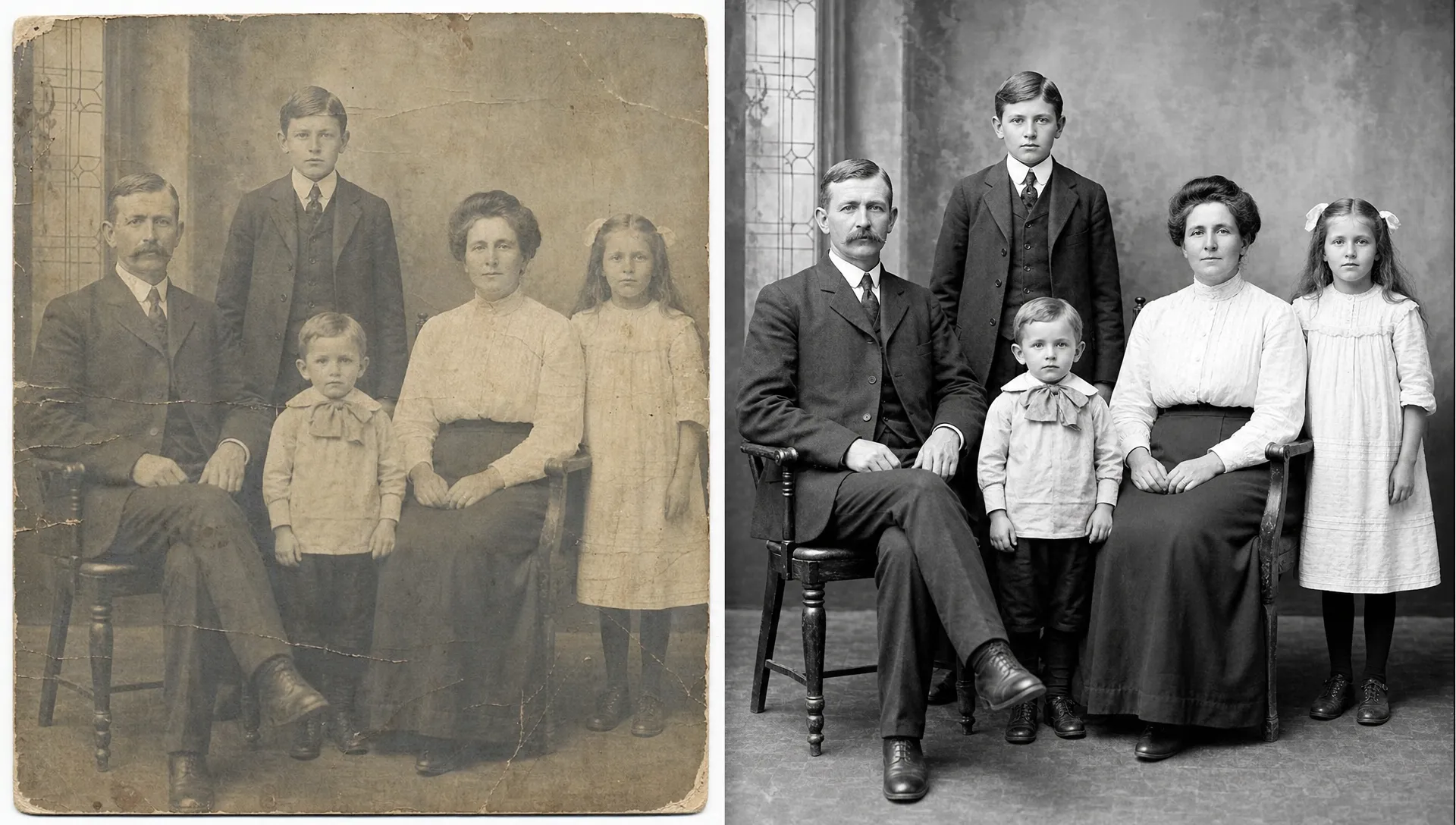
What AI can fix, and what it cannot
AI sharpening is excellent for clarity, but it is not the same as full manual photo reconstruction. Knowing the difference helps set realistic expectations and prevents disappointment when a damaged picture cannot be fully repaired.
ImageSharpen can help with soft focus, low resolution, mild blur and general loss of definition. Its 4x resolution boost can make small files more usable for screens and casual prints. The before and after preview also makes it easier to reject a result if the enhancement does not suit the photo.
It cannot guarantee accurate repair of torn-off sections, missing facial features, deep water damage or heavy creases across important details. Those problems may require manual retouching by a restoration specialist, especially when the image is historically important.
| Restoration need | Good fit for AI sharpening? | Best next step |
|---|---|---|
| Slightly faded portrait | Yes | Enhance, preview and save a copy |
| Blurry scan of an old print | Often | Rescan if possible, then enhance |
| Tiny low-resolution file | Often | Use resolution boost, then check artifacts |
| Torn or missing face area | Limited | Consider manual restoration |
| Severe color staining | Partial | Enhance clarity, then use color correction elsewhere if needed |
Because a photo enhancer free of software installation is quick to test, you can try improvement first and decide whether a more advanced restoration is worth the time or cost.
Save restored pictures for family sharing
After you download the enhanced version, save it with a clear file name. Include the person, event or approximate year if you know it. For example, a name like grandma-marie-wedding-1958-enhanced.jpg is much easier to understand later than IMG_4021.jpg.
Keep three versions when possible: the original scan, the enhanced copy and any version cropped for a specific use. This protects you from overwriting the only untouched file and makes it easier to create prints, slideshows or albums later.
If you are preparing pictures for a digital frame, crop gently and avoid cutting off people near the edges. Older family photos often have important context in the background, such as houses, cars, furniture or handwriting. For display sizing, the advice in make photos clearer for a digital photo frame can help you match the image to the screen.
If you run a family history site, local archive, genealogy blog or small restoration service, restored images also need helpful surrounding text so people and AI search tools can understand them. Platforms such as CapstonAI focus on how brands and organizations appear in AI search, which is relevant when your restored-photo content needs to be found through modern answer engines.
Common mistakes when enhancing faded family pictures
The easiest mistake is treating every photo the same. A studio portrait from the 1940s, a Polaroid from the 1970s and a printed digital photo from the early 2000s all respond differently to sharpening.
Try to avoid these restoration habits:
- Enhancing a screenshot instead of the original file or scan.
- Cropping too tightly before improving resolution.
- Saving over the only untouched copy.
- Judging the result only when zoomed out.
- Making skin, fabric or paper grain look too smooth.
- Printing immediately without checking the image at the intended size.
A photo enhancer free of account setup makes it tempting to process a whole folder quickly, but review your most meaningful photos one at a time. The few extra seconds spent checking faces and edges can prevent awkward results from ending up in a family album.
Frequently Asked Questions
Can a free photo enhancer restore very old family pictures? Yes, it can often improve faded, soft or low-resolution family pictures, especially when the original scan still contains visible detail. It cannot perfectly rebuild areas that are completely missing or destroyed.
Is ImageSharpen good for restoring faded portraits? ImageSharpen is useful for sharpening blurry portraits, improving clarity and boosting resolution directly in the browser. Use the before and after preview to make sure faces still look natural.
What file type should I upload for old photo restoration? ImageSharpen supports JPG, PNG and WEBP. If you are scanning a print, PNG is a good archival choice, while high-quality JPG works well for sharing and casual enhancement.
Should I color-correct a faded picture before or after sharpening? For many family photos, start with a clean scan, enhance clarity, then decide whether color correction is still needed. If the color damage is severe, you may need a dedicated color editing tool after sharpening.
Can I use a photo enhancer free on my phone? Yes. ImageSharpen works in a mobile browser, so you can upload, enhance, preview and download a clearer image without installing desktop software.
Restore your family pictures with less friction
Faded family photos deserve more than being left in a box or trapped in a blurry scan. With ImageSharpen, you can unblur photos online, improve detail, boost resolution up to 4x and download a clearer copy without signing up.
Try one meaningful picture first. Choose the best scan, enhance it, compare the preview and save both the original and restored version. A photo enhancer free of software barriers can make preserving family history feel simple enough to start today.