
If you searched for “correct pixelated image online,” you probably have an image that looks blocky, jagged or low-quality after being enlarged, downloaded from a messaging app or saved too many times. The good news is that you can often improve it in a browser with AI sharpening and upscaling. The key is not to “sharpen harder,” because that can create harsh edges and fake texture. A better approach is to start with the best available file, increase usable resolution, restore edge clarity and check the result at the size where people will actually view it.
Pixelation is not the same as ordinary blur. A blurry photo may still contain smooth transitions and hidden detail. A pixelated image has visible square blocks because there were not enough pixels to describe the subject cleanly. Online AI tools can make those blocks less obvious, but they cannot magically recover facts that were never captured in the original file.
How to correct pixelated image online, without losing detail
To fix pixelation without destroying fine details, work in a controlled sequence: prepare the file, upscale it, sharpen it moderately, compare the preview and download only when the image looks natural. This matters because aggressive sharpening can make a bad image look worse, especially around text, faces, hair, logos and product edges.
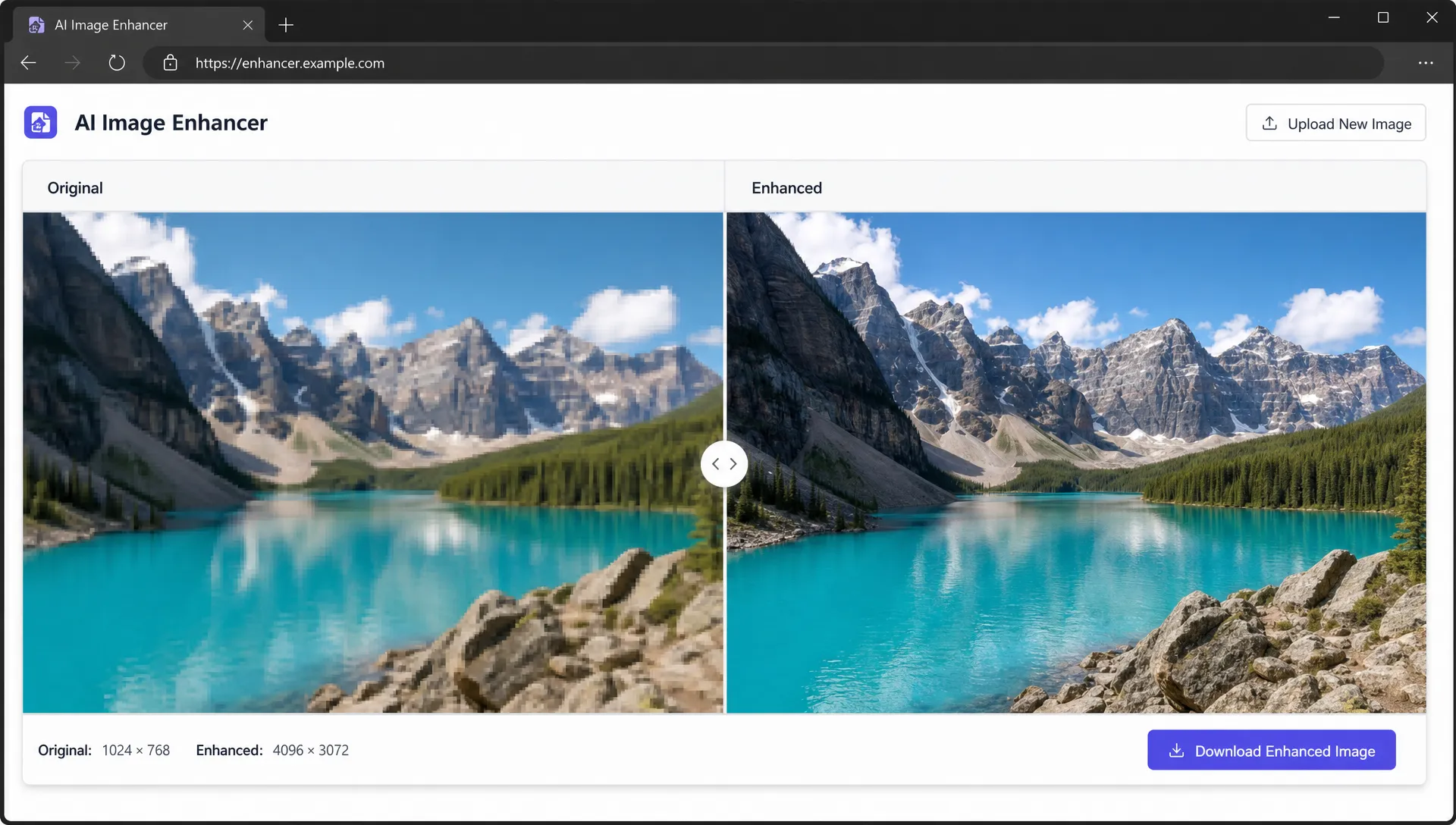
With ImageSharpen, you can upload a JPG, PNG or WEBP directly in the browser, sharpen and enhance the image with AI, preview the before and after result, then download the improved version. The tool is free to use, does not require sign-up and supports files up to 20MB, which makes it practical for quick fixes on desktop or mobile.
The best way to correct pixelated image online is to treat sharpening as one part of a larger restoration process. Upscaling improves the working size of the image, while sharpening helps edges read more clearly. If you only sharpen a tiny file, the tool has very little information to work with.
Why images become pixelated in the first place
Pixelation usually appears when a small image is stretched beyond its original dimensions. A 400 pixel wide photo may look acceptable in a thumbnail, but if you use it as a full-width website banner, every pixel has to cover more screen space. That is when square blocks and stair-step edges become obvious.
Compression can make the problem worse. Social media apps, messaging platforms and some website builders reduce file size by throwing away image data. After several saves, the image may show blocky patches in shadows, rough gradients and broken edges around text.
Common causes include:
- Enlarging a small image too much
- Downloading a compressed copy from chat or social media
- Taking a screenshot instead of using the original file
- Saving a JPG repeatedly at low quality
- Cropping tightly, then enlarging the cropped section
- Using a logo or product image exported at the wrong size
If your file is both pixelated and blurry, fix the pixel structure first with an AI enhancer or upscaler, then evaluate whether extra sharpening is needed.
Start with the best source file you can find
Before you upload anything, look for the cleanest version of the image. The original camera photo, export file or design asset will usually give better results than a screenshot or downloaded preview. Even a slightly larger source can make a noticeable difference.
When you correct pixelated image online, your input file sets the ceiling for the result. AI can infer cleaner edges and reduce blockiness, but it works best when the subject is still recognizable and not heavily compressed. If you have multiple versions, choose the one with the largest dimensions, least visible compression and most natural color.
Avoid editing the same file over and over. Each round of resizing, compressing and saving can create new artifacts. Make a copy of the original, enhance the copy and keep the original safe in case you need to try different settings or compare versions later.
For scans, old documents or printed photos, dust and motion blur can add another layer of quality loss. If that sounds like your situation, this guide to fixing blurry photos after a bad scan explains how to prepare scanned images before enhancement.
Use AI upscaling before judging sharpness
A pixelated image often needs more resolution, not just stronger contrast around edges. Upscaling increases the number of pixels in the image, giving the enhancer more room to rebuild lines, textures and transitions. ImageSharpen can boost resolution up to 4x, which is useful when a small photo needs to look cleaner on a website, presentation or print draft.
Here is a simple way to decide what your image needs:
| Problem you see | Likely cause | Best first move |
|---|---|---|
| Square blocks across the image | Low resolution or heavy compression | Upscale and enhance with AI |
| Jagged edges around text or logos | Image enlarged from a small file | Use AI upscaling, then check edges |
| Soft details without blockiness | Camera blur or focus issue | Sharpen moderately |
| Halos around objects | Over-sharpening | Reduce editing and start from original |
| Waxy skin or fake texture | Too much enhancement | Use a lighter result or smaller display size |
If you want to correct pixelated image online for a logo, product photo or profile image, do not judge the result only at 300 percent zoom. Open it at the real size where it will be used. A file can look imperfect under extreme zoom but clean and professional in context.
Check edges, text and faces before downloading
The most important areas to inspect are the parts viewers notice first. In portraits, that usually means eyes, hairline, skin texture and the outline of the face. In product images, check the silhouette, label text and shadows. In logos or graphics, inspect corners, curves and small letters.
A good enhancement should make details easier to read without calling attention to the edit. If edges look crunchy, if small textures become noisy or if skin looks plastic, the result may be too aggressive. In that case, go back to a better source file or use the enhanced image at a smaller final size.
Fine text and line art deserve special care because they reveal sharpening artifacts quickly. For more detail on this type of image, see this guide on how to sharpen images while preserving fine text and edges.
When your goal is to correct pixelated image online, the best result is not always the sharpest-looking version. It is the version that looks believable, readable and consistent with the rest of your design or photo set.
Avoid the most common pixelation fixes that backfire
Some quick edits make pixelation worse. The biggest mistake is applying a high sharpening filter to an image that is already blocky. This increases contrast between pixel blocks, so the square pattern becomes more visible instead of less.
Another mistake is resizing manually in a basic editor without enhancement. Stretching a 600 pixel image to 2400 pixels simply creates a larger version of the same blocky file. AI upscaling is different because it analyzes patterns and attempts to rebuild cleaner transitions.
Be careful with noise reduction too. Heavy smoothing can hide pixel blocks, but it may also erase hair, fabric, labels and natural texture. The image can end up looking soft, painted or artificial.
A safer workflow is:
- Use the highest-quality source available
- Upload it to an AI sharpener or enhancer
- Preview the before and after result
- Inspect important edges at actual display size
- Download the improved version once it looks natural
If you regularly work with low-resolution assets, a free AI image upscaler without sign-up can save time because you do not need to install software or create an account for every quick fix.
Practical examples: where online pixelation repair helps
Online repair is useful for everyday image problems, not only professional design work. You might need to clean up a product photo before adding it to an online listing, improve a screenshot for a tutorial, restore an old family image or make a compressed travel photo look presentable in a blog post.
Food, travel and lifestyle content are especially sensitive to poor image quality because people judge texture, freshness and trust from visuals. If you are preparing visuals for a food-related article or comparing how brands present meals for travel and work settings, sites such as Mangia Bene Ovunque are a useful reminder that clear product imagery helps readers understand quality quickly.
You may also need to improve images for client work when time is short. In that case, prioritize files that already have a strong composition and recognizable subject. Enhancement can improve clarity, but it cannot fix poor framing, missing focus or a subject that is too small in the original image.
What AI can and cannot recover
AI sharpening is powerful, but it is not a forensic recovery tool. It can reduce the visual impact of pixelation, make edges cleaner, increase resolution and improve perceived detail. It cannot restore a license plate, face or tiny text with guaranteed accuracy if the original pixels never contained that information.
This distinction matters when you correct pixelated image online for documents, identity images or evidence. Use enhancement to make an image more readable, but do not treat newly generated detail as proof of what was originally there.
For creative and business uses, the results can still be excellent. Website thumbnails, listing photos, presentation images and social posts often need to look clean at normal viewing size, not survive microscopic inspection. If the enhanced version looks natural in context, it has done its job.
Frequently Asked Questions
Can I correct pixelated image online for free? Yes. ImageSharpen lets you upload an image in your browser, enhance it with AI and download the improved result without creating an account.
Will fixing pixelation bring back the original detail? It can improve perceived detail, rebuild cleaner edges and reduce blockiness, but it cannot guarantee perfect recovery of information that was not in the original file.
Is it better to sharpen or upscale a pixelated image first? Upscaling is usually the better first step for a small, pixelated file. After the image has more usable resolution, sharpening can help edges look clearer.
What file types work best for online pixelation repair? JPG, PNG and WEBP are common choices. Use the least compressed and largest version you have, especially for text, logos and product photos.
How do I know if I over-sharpened the image? Look for bright halos, crunchy edges, noisy texture, jagged text or unnatural skin. If those appear, start again from the original and use a cleaner enhancement workflow.
Fix your pixelated image in your browser
You do not need Photoshop, plug-ins or a complicated editing setup to make a pixelated image look clearer. Start with your best source file, enhance it once, compare the before and after preview and check the result at the size where it will be used.
If you want a fast browser-based option, try ImageSharpen to sharpen blurry images, unblur photos and boost resolution online for free. Upload your JPG, PNG or WEBP, preview the improvement and download a cleaner version in seconds.