
Your image looked perfect before you uploaded it.
A few seconds later, it’s blurry on your website.
Frustrating? Absolutely. But it’s also one of the most common problems website owners run into.
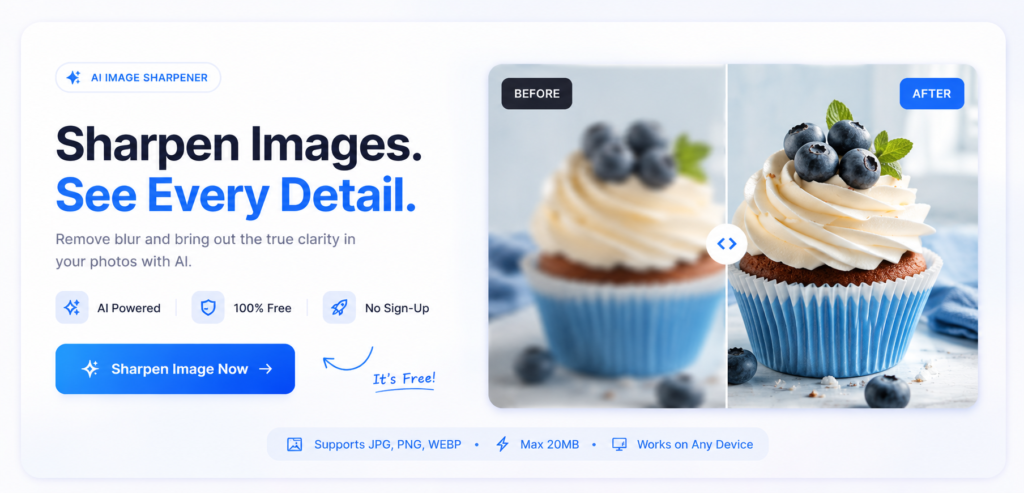
Before you upload the same image again or spend hours trying different settings, it’s worth understanding what’s causing it. In many cases, the fix is much simpler than you’d expect. If your image has already lost quality, ImageSharpen can help improve it before you upload it again.
The Most Common Reasons Website Images Look Blurry
A blurry website image usually isn’t caused by one big mistake.
It’s often a combination of small things that go unnoticed until the image is live.
Your Website Compressed the Image
Many website builders automatically compress images to make pages load faster.
That’s good for speed, but sometimes it comes at the cost of image quality. Platforms like WordPress, Shopify and Wix all apply some level of compression depending on how your site is configured.
Compression helps websites load faster, but if it’s too aggressive, fine details can be lost. That’s why an image that looks sharp on your computer may appear softer once it’s published online.
The Image Isn’t Large Enough
Uploading a small image and expecting it to fill a large banner rarely ends well.
For example, if your website displays an image at 1600 pixels wide but the file you uploaded is only 800 pixels wide, the browser has to stretch it. That’s when things start looking soft and blurry.
You’re Stretching a Small Image
This is different from uploading the wrong size.
Sometimes the image itself is fine, but it’s being stretched inside your website builder. Dragging the corners of an image block to make it bigger doesn’t add detail—it simply enlarges the pixels that are already there.
The Browser Is Displaying a Scaled Version
Modern screens come in all shapes and resolutions.
An image that looks sharp on one monitor might appear softer on another because the browser is scaling it differently. This is especially noticeable on high-resolution displays, where lower-quality images become much easier to spot.
Four Ways to Make Your Website Images Look Sharp Again
Once you know what’s causing the problem, fixing it becomes much easier.
Here are four things worth checking before you upload another image.
1. Upload the Image at the Right Size
Every website has recommended image dimensions.
If your banner is displayed at 1600 pixels wide, upload an image that’s close to that size instead of relying on the website to stretch a smaller one.
Starting with the right dimensions gives your images the best chance of staying sharp.
2. Improve Image Quality Before Uploading
Don’t wait until the image is already on your website to notice something’s wrong.
Open the file first and zoom in. If it already looks a little soft on your computer, it probably won’t look any better once it’s uploaded.
Taking a minute to improve the image beforehand can save you from uploading it multiple times.
3. Use an AI Image Enhancer Like ImageSharpen
If your image has lost quality, an AI image enhancer can help bring back some of the clarity before it goes on your website.
Upload the image to ImageSharpen, let the AI enhance it, then use the improved version on your site. It’s a quick way to make banners, product photos and blog images look cleaner without opening complicated editing software.
4. Check Your Website’s Image Settings
Sometimes the image isn’t the problem at all.
Your website might be compressing uploads too aggressively, displaying a smaller version than expected, or using a setting that’s reducing image quality to improve page speed.
If you’ve already uploaded a high-quality image and it still looks blurry, take a look at your website’s image settings before replacing the file.
A Quick Checklist Before You Upload Any Image
Before you hit upload, ask yourself:
- Is the image the right size?
- Does it still look sharp after exporting?
- Are you using the original file?
- Have you checked it on both desktop and mobile?
It only takes a minute, and it can save you from replacing the same image later.