
A lot of people think Photoshop is the only way to improve a logo.
It isn’t.
Most logos don’t need hours of editing or expensive software. They just need a few simple fixes. If your logo looks blurry, stretched or a little rough around the edges, you can often make it look much better in just a few minutes.
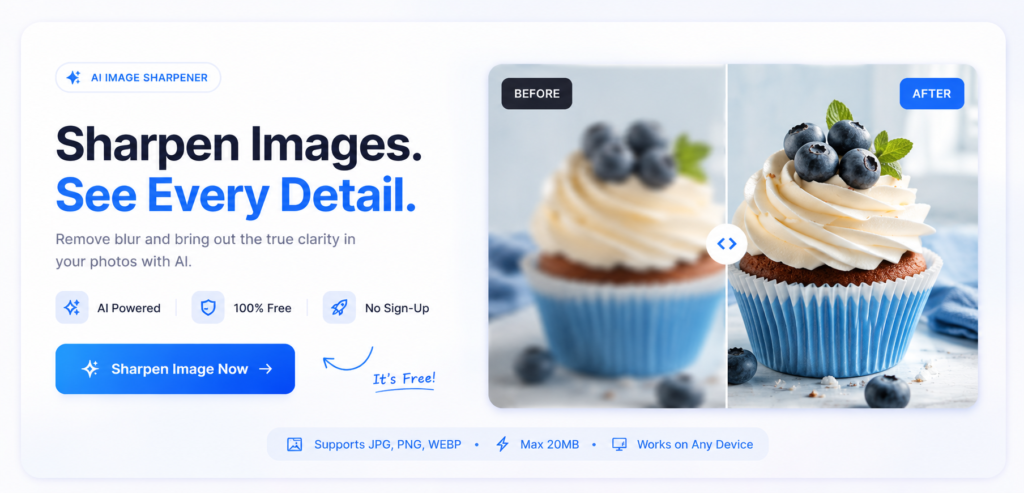
That’s exactly where tools like ImageSharpen come in. Instead of learning complex editing software, you can improve the quality of your existing logo and get back to what you were doing.
For most people, the goal isn’t to redesign their logo. They simply want it to look clearer on a website, social media profile, presentation or business card. In many cases, that’s much easier to achieve than people expect.
What’s Actually Making Your Logo Look Bad?
A logo can look unprofessional for a dozen different reasons.
The trick is figuring out what’s causing the problem before trying to fix it.
It’s Too Small
This happens all the time.
A logo that was originally created for a social media profile picture gets reused on a website banner or a presentation. Once it’s stretched beyond its original size, it starts to lose detail.
It’s Blurry or Low Resolution
Not every blurry logo is a bad design.
Sometimes it’s just an old file that’s been downloaded, shared and resized so many times that it no longer looks sharp. That’s where an AI image upscaler like ImageSharpen can make a noticeable difference.
Instead of simply increasing sharpness, AI can improve the overall clarity of the logo while keeping the original design intact. This is especially useful if you no longer have access to the original high-quality file.
It Has a Distracting Background
A white box around a logo can make even a well-designed brand look unfinished.
Using a transparent version of your logo instantly gives it a cleaner, more professional appearance, especially on coloured backgrounds.
It’s Being Stretched Out of Proportion
Logos aren’t meant to be squashed or stretched to fit a space.
If the logo looks wider or taller than it should, check the aspect ratio before doing anything else. Simply resizing it correctly can make it look far more polished.
There’s an Easier Way Than Photoshop
If all you want is a cleaner-looking logo, Photoshop is probably overkill.
It’s a powerful tool, but it also comes with a learning curve. Most people don’t want to spend an hour watching tutorials just to fix a logo they’re going to use on a website or business card.
In many cases, you only need to solve one problem. Once you know what that problem is, the fix becomes much simpler.
Fix the Problem, Not the Whole Logo
Take a close look at your logo before you start editing.
Is it actually a bad design?
Or is it just blurry? Maybe it has a white background. Maybe it’s too small for where you’re using it.
There’s no point rebuilding an entire logo if only one thing needs fixing.
Let AI Handle the Boring Part
Improving image quality used to mean opening complicated editing software and tweaking dozens of settings.
Now, an AI image upscaler like ImageSharpen can do most of that work for you.
Upload your logo, let the AI improve the clarity, and download a cleaner version in a matter of seconds. It’s one of the easiest ways to make an older logo look sharper without changing the design itself.
Keep Your Edits Simple
It’s easy to overdo it.
Adding heavy filters, increasing sharpness too much or changing colours just because you can often makes a logo look worse.
The best logos are usually the simplest ones. If your logo already represents your brand well, focus on improving the quality rather than changing how it looks.
What You Can Do Without Photoshop
You don’t need professional design software to handle most everyday logo tasks.
Sharpen a Blurry Logo
If your logo has lost quality over time, an AI image upscaler like ImageSharpen can help restore clarity and make the edges look cleaner.
Remove the Background
Need a transparent logo for your website or social media? Tools like remove.bg can remove the background in just a few clicks.
A transparent logo blends naturally into websites, presentations and marketing materials, making your brand look much more professional than using a logo with a coloured box around it.
Resize It for Different Platforms
Your website, LinkedIn profile, Instagram page and presentation slides all use different image sizes.
Instead of stretching the same logo everywhere, create properly sized versions for each platform. Your logo will look much cleaner, and you won’t have to worry about it appearing blurry or distorted.
When Photoshop Still Makes Sense
Photoshop isn’t unnecessary. It’s just not the first tool you should reach for.
There are plenty of situations where it’s still the better option.
You’re Changing the Design
If you’re updating the colours, replacing the font, moving elements around or creating a completely new version of your logo, Photoshop or another design tool gives you much more control.
You’re Working With Brand Assets
Businesses often have brand guidelines that include logos, colours, typography and graphics.
If you’re building marketing material or editing multiple brand assets, Photoshop makes the workflow much easier.
You’re Creating Something From Scratch
AI can improve an existing logo, but it can’t replace the creative process of designing one.
If you’re starting a new business or creating a completely new brand identity, it’s worth using professional design software or working with a designer.
Conclusion
Photoshop is a powerful tool, but it isn’t the only way to make a logo look better.
Needing a better-looking logo doesn’t automatically mean you need to learn it.
For most people, the goal isn’t to redesign a logo, it’s simply to make it look cleaner, sharper and more professional. If that’s all you’re trying to do, an AI image upscaler like ImageSharpen can get you there in a fraction of the time.
Sometimes, the simplest solution is the right one.