
Blurry screenshots are frustrating because the most important details are often tiny: menu labels, receipt totals, ticket IDs, code snippets and confirmation numbers. If you have searched for an ai sharpen image tool, the real goal is not dramatic enhancement. It is readable text that still looks like the original screenshot. Modern AI sharpening can help because it treats text as structured edges rather than random texture, which makes it possible to improve clarity without bending letters or inventing strange strokes.
Why screenshots blur in the first place
A screenshot can look blurry even when it was captured perfectly. The problem often happens after the capture, when an app resizes it, a messaging platform compresses it or a browser displays it at a different scale than the original. A 1440 pixel wide screenshot squeezed into a 900 pixel container loses fine edges, especially around small text.
Screenshots also contain antialiasing, the soft gray pixels that make letters look smooth on a screen. When that image is enlarged or compressed, those gray transition pixels can turn into haze around characters. JPEG compression adds another layer of trouble by creating blocky artifacts around sharp UI elements, while repeated uploads can make the same text softer every time.
If you need a quick step-by-step fix rather than the technical explanation, ImageSharpen has a simple guide on how to sharpen a blurry screenshot for free in a browser. The rest of this article focuses on why AI can improve screenshot clarity without making text look fake.
How an ai sharpen image model protects text edges
Traditional sharpening increases contrast around edges everywhere. That can make a screenshot look crisp at first glance, but it also creates halos, jagged letters and noisy backgrounds. Screenshot text needs a more selective approach.
AI sharpening starts by identifying patterns that look like real structure. In a screenshot, that structure includes straight text strokes, icon borders, UI dividers, buttons and small symbols. Instead of applying the same sharpening strength to every pixel, a model can focus more on the boundaries that define characters and less on flat areas such as white backgrounds or solid color panels.
It separates letters from background noise
A reliable ai sharpen image process looks for repeatable shapes. The vertical stroke of a lowercase l, the curve of an e and the crossbar of a t have predictable visual forms, even when softened by scaling. Noise does not have that same structure. Compression blocks, speckles and color banding appear irregular, so the model can reduce or ignore them instead of sharpening them.
This distinction matters because noisy sharpening can make screenshots harder to read. If the background texture becomes stronger than the text edge, the eye has to work harder. Good AI sharpening improves the signal, meaning the letters and interface lines, while holding back the clutter.
It rebuilds boundaries, not new words
AI does not truly know what the original text said unless it is paired with OCR or source data. For screenshot enhancement, the safer goal is visual reconstruction. The model estimates where the edge of each character should be based on nearby pixels and the surrounding layout.
That is why the best results come from slightly soft screenshots, not unreadable ones. If the original still contains enough character shape, AI can restore clearer boundaries. If the text has collapsed into a gray smear, no tool can guarantee the exact letters without guessing.
Why screenshots need different handling than photos
Photos and screenshots blur in different ways. A portrait has skin texture, shadows and depth. A screenshot has flat color, hard lines and synthetic text. The sharpening method that looks good on a face can look terrible on a settings menu.
An ai sharpen image tool used on screenshots should favor clean geometry over heavy texture. The aim is not to make the image look more cinematic. It is to preserve the structure of the interface so the viewer can read, verify and share it with confidence.
| Screenshot element | What AI should improve | What AI should avoid |
|---|---|---|
| Small text | Sharper strokes and better contrast | Warped letters or fake characters |
| Icons and logos | Cleaner borders | Over-thick outlines |
| Tables and grids | Straighter lines | Halo effects around rules |
| QR codes and barcodes | Better edge clarity when source detail exists | Invented blocks that break scanning |
| Flat backgrounds | Reduced compression noise | Grainy texture that was never there |
This is also why previewing matters. Text can look sharper when zoomed out, but the real test is whether individual letters, numbers and symbols still match the source.
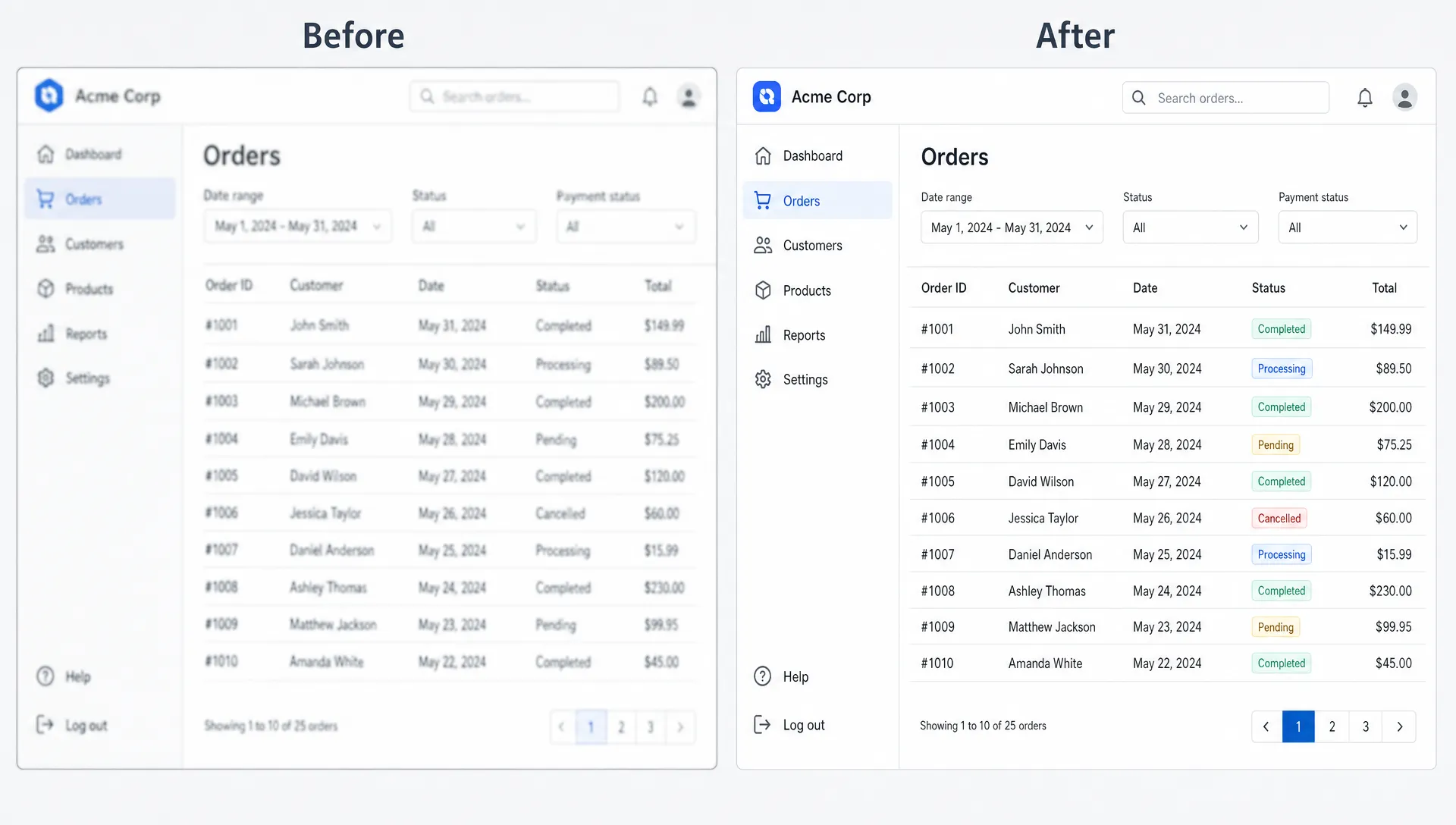
Practical workflow for sharper screenshots without text distortion
Start with the best source file you have. A screenshot saved directly from the device is better than one downloaded from a chat thread, social platform or document export. Each extra save can add compression, scaling or color changes that make text harder to recover.
Before uploading, avoid cropping too tightly around the text. A little surrounding context helps AI understand line direction, spacing and nearby shapes. If you crop a single word from a noisy image, the model has less information to distinguish a true letter edge from a compression artifact.
For the cleanest result, follow a simple sequence:
- Use the original PNG screenshot when possible, especially for UI text and code.
- Avoid enlarging the screenshot manually before enhancement.
- Check the before and after preview at 100 percent zoom, not only fit-to-screen size.
- Compare numbers, dates, email addresses and IDs character by character.
- Download the enhanced version only after confirming that text shapes are clearer, not changed.
If you often work with UI captures, receipts or document screenshots, the related guide on how to sharpen images online while preserving fine text and edges covers a broader quality-control workflow.
Common screenshot types and what to watch
Different screenshots fail in different ways. A chat screenshot may have small gray text and emoji edges. A receipt screenshot may contain totals, dates and merchant names. A code screenshot may include punctuation that is easy to distort, such as brackets, semicolons and underscores.
Ticketing and checkout screenshots deserve extra care because they often combine names, order numbers, QR codes and payment details. For example, a confirmation screen from a modern event ticketing platform may be useful for an attendee or organizer only if the text remains exact and any scannable code still works. Sharpening should make those elements easier to see, not reinterpret them.
Code and technical UI screenshots need the most conservative enhancement. In code, one blurred character can change the meaning. A softened comma, period or colon might look similar after aggressive sharpening, so always compare the enhanced result to the original if the screenshot will be used for debugging, documentation or support.
When AI can and cannot recover screenshot text
A good ai sharpen image result depends on how much real information remains in the file. If letters are soft but still shaped, AI can often improve their boundaries. If the screenshot is low resolution, heavily compressed or scaled several times, there may not be enough evidence for a trustworthy reconstruction.
The biggest warning sign is text that was already unreadable before enhancement. AI may make it look more text-like, but sharper-looking does not always mean more accurate. This is especially important for legal, medical, financial or identity-related screenshots where exact wording matters.
A practical rule is simple: use AI sharpening to improve readability, not to verify facts that cannot be checked elsewhere. If an order number, address or access code is critical, confirm it from the original app, email or document whenever possible. For a deeper look at these limits, see why AI cannot clear every blurry image.
How to inspect the result before you download
The best way to judge screenshot enhancement is to zoom in and compare specific details. Do not rely only on the overall impression. A screenshot can look cleaner as a whole while one or two characters become distorted.
Before you trust any ai sharpen image output, inspect high-risk areas first. Look at similar characters such as O and 0, l and 1, S and 5, B and 8. Check punctuation in code snippets, decimal points in prices and small labels in navigation menus. These details reveal whether the enhancement preserved structure or pushed too hard.
Also watch for halos, which appear as bright or dark outlines around letters. A slight edge boost is normal, but thick outlines can reduce readability and make the screenshot look edited. If the enhanced version creates jagged diagonals, wavy text baselines or inconsistent letter spacing, the source may need a lighter enhancement or a better original capture.
FAQ
Can AI sharpen screenshot text without changing the words? AI can improve visible edges when enough original detail remains, but it cannot guarantee the true text if the source is unreadable. Always verify critical numbers, names and codes against the original source.
Why does normal sharpening distort screenshot text? Standard sharpening boosts contrast around every edge, including compression artifacts and antialiasing. That can create halos, jagged strokes and thicker letters. AI sharpening can be more selective because it identifies text-like structure.
Is PNG better than JPG for screenshots? PNG is usually better for screenshots because it preserves flat colors and crisp text without lossy compression. JPG can still be improved, but repeated compression often damages small characters and icons.
Can an ai sharpen image tool fix screenshots from messaging apps? It can often improve them if the text is still partly readable. However, messaging apps may resize and compress images heavily, so the result depends on how much detail survived the upload.
Should I upscale a screenshot before or after sharpening? In most cases, let the AI tool handle enhancement and upscaling together. Manual enlargement before sharpening can stretch blur and artifacts, making text harder to recover cleanly.
Try clearer screenshot sharpening in your browser
If you want to improve a blurry screenshot without installing software, ImageSharpen lets you upload JPG, PNG or WEBP files directly in your browser. The tool is free to use, requires no sign-up and supports uploads up to 20MB.
For screenshots, the built-in before and after preview is especially useful because you can check text clarity before downloading. ImageSharpen can sharpen blurry images, unblur photos online and boost resolution up to 4x, with fast processing designed for quick edits on desktop or mobile browsers. Use it when you need an ai sharpen image workflow that keeps the focus where it belongs: readable text, cleaner edges and a result that still looks like your original screenshot.