
Screenshots should be sharp. They are literally a direct capture of what is on your screen. But somehow, they often come out looking soft, muddy, or just not clear enough to actually use.
Here is why that happens and how to fix it fast.
Why Do Screenshots Come Out Blurry?
A few reasons, and they are more common than you think.
- Scaling issues. If your screen resolution does not match the resolution of whatever you are capturing, the screenshot gets scaled up or down during saving. That scaling introduces softness.
- Compression on download. You saved a screenshot from WhatsApp, Telegram, Instagram, or a website. The platform compressed it before you ever got to it. What you downloaded was already degraded.
- Screen recording frames. You are pulling a still from a video or screen recording. Video frames are heavily compressed and rarely as sharp as a proper screenshot.
- Retina and high DPI screens. Screenshots taken on high DPI displays sometimes look sharp on that screen but appear blurry when opened on another device or uploaded somewhere because the dimensions are mismatched.
- Low resolution source. The content on screen was already low resolution. Screenshotting a blurry image just gives you a blurry screenshot.
Whatever the cause, the fix is the same.
The Fastest Way to Sharpen a Screenshot
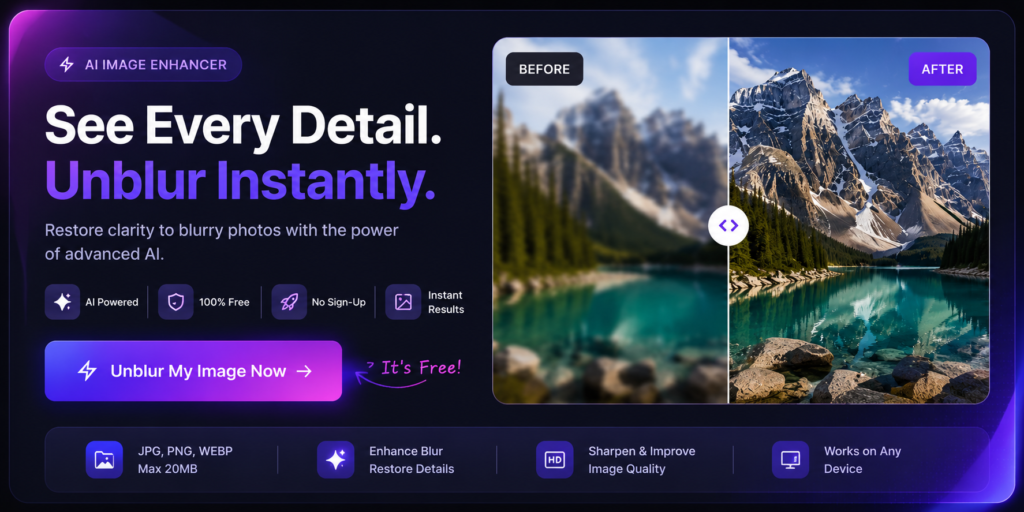
Go to ImageSharpen.com, upload your screenshot, and hit Enhance. The AI sharpens edges, recovers detail, and returns a clearer version in about 15 seconds. Free, no account needed, no watermark.
This works on any type of screenshot. Documents, social media posts, chat messages, slides, product images, anything.
Step by Step
- Take or save your screenshot to your device
- Go to ImageSharpen.com on your phone or desktop
- Drop the screenshot into the upload area
- Click Enhance Image
- Use the before and after slider to compare
- Download the sharpened version
The whole thing takes under a minute.
Which Screenshots Benefit Most from AI Sharpening?
Not every screenshot needs sharpening, but some respond dramatically well.
Screenshots with text. Blurry text is the most frustrating because it is often unreadable. AI sharpening tightens up letter edges and improves legibility significantly. This includes screenshots of documents, articles, subtitles, and chat messages.
Presentation slides. Screenshots of PowerPoint or Google Slides that have gone soft from being screenshotted across devices or downloaded from a shared link.
Social media screenshots. Instagram, Twitter, LinkedIn and similar platforms compress images aggressively. Screenshots of posts often look noticeably degraded. Sharpening them makes a visible difference.
Product images screenshotted from websites. If you are screenshotting a product for reference or to use in a document, the screenshot often loses crispness. AI brings it back.
Screenshots from video. Frames pulled from video are heavily compressed. AI sharpening recovers edge detail and makes them look more like photographs than video stills.
Can You Sharpen Screenshots on Mobile?
Yes. ImageSharpen.com works in mobile browsers on both iPhone and Android. You can upload a screenshot directly from your camera roll or downloads folder without needing any app.
This is useful when you screenshot something on your phone and need it looking sharp before sharing it or saving it for later.
What About Screenshots with Very Small Text?
Yes this is possible via Imagesharpen.com. The edges of letters become crisper and contrast improves, which makes small text more legible even if it does not become perfectly sharp. If the text was completely unreadable before, it may become readable after sharpening. If it was just slightly blurry, it will usually come out looking clean.
Common Questions
Will sharpening a screenshot make it look edited or fake? No. Good AI sharpening looks natural. The goal is to recover what should have been there, not to make the image look over-processed. The result should look like a proper screenshot, not like someone ran a filter over it.
Can I sharpen multiple screenshots at once? Currently the tool processes one image at a time. Upload, enhance, download, repeat. It is fast enough that doing a handful one by one is not a big hassle.
What file types does it accept? JPG, PNG, and WEBP. Most screenshots save as PNG by default, which works perfectly.
Is there a file size limit? Up to 20MB per image, which is well above what most screenshots will ever be.
The Honest Summary
Blurry screenshots are fixable in almost every case. Whether it is a slide you screenshotted from a presentation, a social media post that downloaded poorly, or a chat message that came through looking muddy, AI sharpening handles it in seconds.
No software to install, no Photoshop skills needed, no cost.
Go to ImageSharpen.com and drop your screenshot in. It takes less time than it took to read this article.