
A blurry picture can be frustrating, especially when it is the only copy you have. Maybe it is a family photo, a product shot, a screenshot, a profile picture or an image that looked fine on your phone but turned soft after sending, uploading or cropping.
The good news is that you can often make a blurry picture clear online free without installing Photoshop, downloading an app or creating an account. The best results come from using an AI image sharpener on the highest-quality version of your file, then checking the before-and-after preview carefully before downloading.
This guide shows you the practical process, what types of blur are fixable, what to do before uploading and how to avoid making the image worse.
Quick answer: how to make a blurry picture clear online free
If you want the fastest path, use a browser-based AI sharpener such as ImageSharpen. It sharpens blurry images, improves clarity and can boost resolution up to 4x, with no sign-up or software installation required.
Here is the simple process:
- Find the original image file: Use the photo from your camera roll, downloads folder or original message thread rather than a screenshot of the image.
- Open the online sharpener: Go to the free AI image sharpener in your browser on desktop or mobile.
- Upload your image: Use a supported file type such as JPG, PNG or WEBP, up to the available upload limit.
- Let the AI enhance it: The tool analyzes edges, texture, softness and resolution to produce a clearer version.
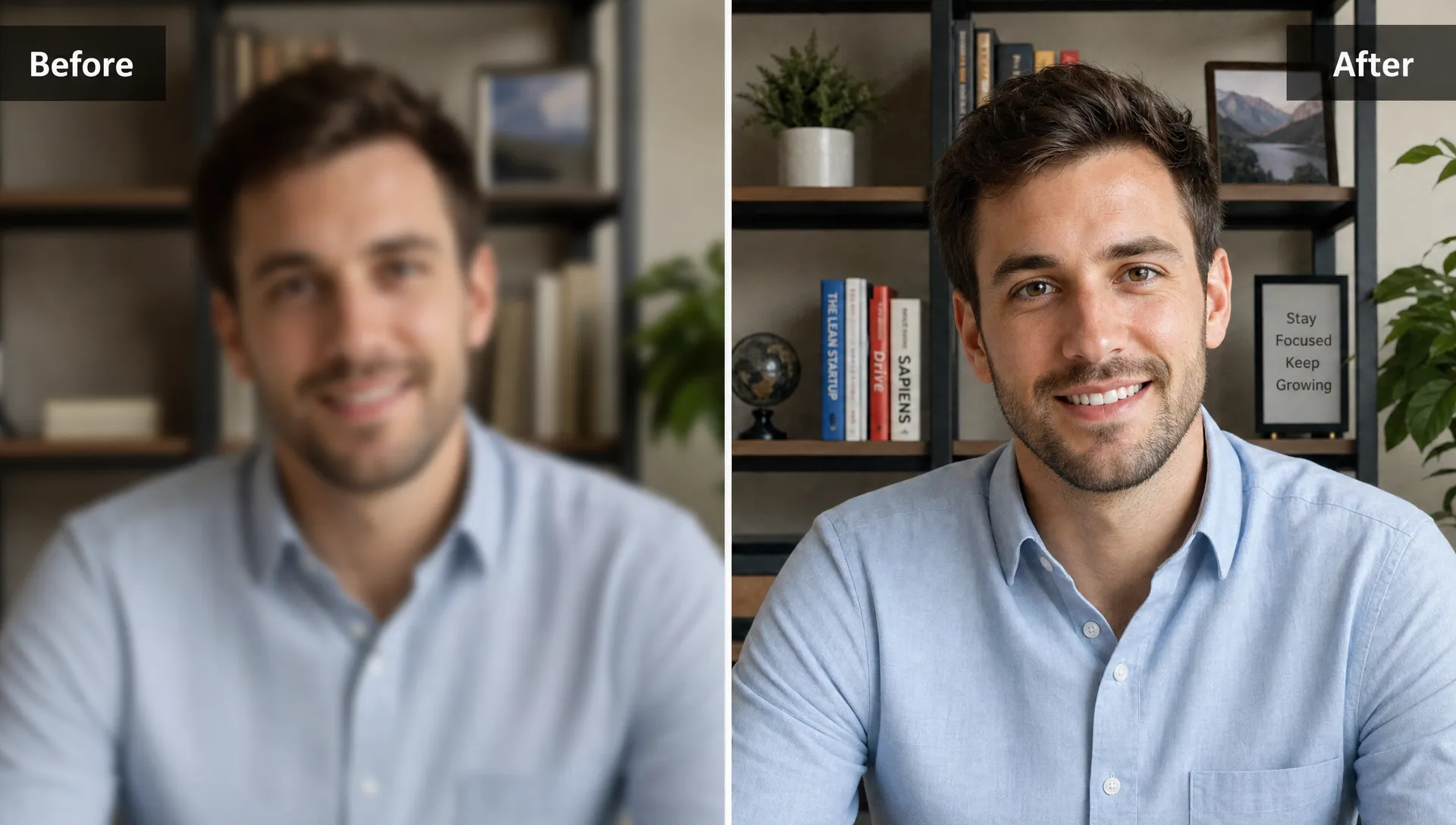
- Compare before and after: Check faces, text, edges and fine details before saving.
- Download the enhanced image: Save the clearer version and keep the original untouched as a backup.
For most everyday photos, the whole process takes seconds. If the blur is mild to moderate, the improvement can be dramatic. If the image is extremely out of focus or missing detail entirely, sharpening can still help, but it cannot perfectly reconstruct information that was never captured.
Why your picture looks blurry in the first place
Not all blur is the same. A photo can look soft because the camera missed focus, the subject moved, the image was compressed by an app or the file was enlarged beyond its original resolution. Understanding the cause helps you set realistic expectations.
| Cause of blur | What it looks like | Can an online AI sharpener help? |
|---|---|---|
| Slight out-of-focus capture | Faces, objects or text look soft but still recognizable | Yes, often very well |
| Motion blur | Streaking or smearing in one direction | Sometimes, depending on severity |
| Low resolution | Pixelated or blocky when zoomed in | Yes, especially with AI upscaling |
| Compression | Mushy details, artifacts or loss of texture after sharing | Yes, if enough detail remains |
| Heavy cropping | Subject looks enlarged but weak and noisy | Often, but results depend on the original file |
| Extreme blur | The subject is barely identifiable | Limited improvement only |
AI sharpening works best when there is still structure in the image. For example, a soft portrait where the eyes and hair are visible is a strong candidate. A photo where the face is just a smudged shape is much harder because the tool has less real information to work with.
Before you upload: use the best source file you can find
The file you upload matters as much as the tool you use. If you upload a compressed copy, a screenshot of a photo or a version that has already been resized several times, you are giving the AI less detail to recover.
Start by looking for the original. On a phone, that usually means the image saved in your camera roll rather than the version inside a social media post. On a computer, it may be the original download, camera export or file from your cloud storage. If someone sent you the image through a messaging app, ask whether they can send it as a file or document instead of as a compressed photo.
A few simple habits can improve the final result:
- Use the largest available version of the picture.
- Avoid uploading screenshots of photos when the original image exists.
- Do not crop tightly before sharpening unless you only need one small area.
- Keep a copy of the original file before editing.
- Use JPG, PNG or WEBP when possible.
This step is especially important if the image contains small text, a logo, a product label or facial details. AI can enhance edges and clarity, but starting with more pixels gives it a better foundation.
Step-by-step: clear a blurry picture in your browser
You do not need advanced editing skills to sharpen an image online. The workflow is designed for normal users who want a cleaner result quickly, whether they are working from a phone, tablet or laptop.
Upload the blurry picture
Open the AI sharpener and upload your file. If you are on mobile, choose the image from your photo library or file manager. If you are on desktop, select the file from your folder or drag it into the upload area if the interface supports it.
ImageSharpen supports common web image formats such as JPG, PNG and WEBP, which covers most photos, screenshots, graphics and downloaded images. The tool is built for quick browser use, so you do not need to install editing software or create an account just to fix one picture.
Let the AI sharpen and enhance the image
After upload, the AI processes the picture to improve visible detail. This can include sharpening soft edges, improving local contrast and boosting resolution so the final image looks clearer at normal viewing size.
This is different from simply increasing the sharpness slider in a basic editor. Traditional sharpening often adds halos, grain or harsh edges when pushed too far. AI enhancement is more context-aware because it evaluates patterns in the image, such as faces, objects, text boundaries and texture.
Check the before-and-after preview
A preview matters because not every image needs the same amount of enhancement. Look at the most important areas first. For a portrait, check eyes, mouth, hairline and skin texture. For a product photo, inspect edges, labels, materials and shadows. For a screenshot, zoom into the text and icons.
If the picture looks clearer without looking artificial, download it. If the image looks over-processed, try starting again with a better source file if you have one.
How to get the clearest result for different image types
The best way to make a blurry picture clear depends on what the picture is. A portrait, screenshot, logo and product image all need slightly different judgment.
| Image type | What to check after enhancement | Practical tip |
|---|---|---|
| Portrait | Eyes, hair, skin texture and facial edges | Avoid over-sharpening skin, natural detail looks better than harsh contrast |
| Product photo | Labels, edges, texture and shape | Use the original shot before any marketplace compression |
| Screenshot | Text, icons and interface lines | Upload the actual screenshot file, not a resized copy |
| Logo or graphic | Edges, transparency and color blocks | PNG is usually better than a low-quality JPG |
| Old photo | Faces, clothing, background detail and grain | Keep some natural texture, removing all softness can look fake |
If your image is for selling something online, clarity can affect how professional the listing feels. For that use case, this guide on how to make a product photo clearer for free goes deeper into fixing product shots without reshooting.
For screenshots, the goal is usually readability rather than beauty. If you are trying to recover small text or UI details, you may also find it useful to learn how to sharpen a blurry screenshot without using a dedicated design app.
What online AI sharpening can and cannot fix
A free online tool can do a lot, but it is not magic. The most reliable results come from photos where the subject is already visible and the blur is not extreme.
AI sharpening can usually improve:
- Soft photos from slight focus errors.
- Pictures compressed by messaging apps or websites.
- Images that look dull after resizing.
- Low-resolution photos that need a cleaner larger version.
- Screenshots with slightly fuzzy text.
It cannot always fix severe blur where the original details are gone. If a face is unrecognizable, a license plate is just a block of pixels or a moving subject is stretched across the frame, the tool may make the image look cleaner but not truly recover the missing information.
This distinction matters. A good AI sharpener should improve clarity while preserving the image’s natural look. If a tool invents too much detail, the picture can appear strange, especially around faces, hands, text or logos.
Common mistakes that make blurry pictures harder to fix
Many blurry images become worse before anyone tries to enhance them. The problem is usually not one bad edit, but a chain of small quality losses.
One common mistake is sending a photo through multiple apps before sharpening it. Each platform may resize or compress the file. By the time you upload it to an enhancer, the clean detail has already been replaced by artifacts.
Another mistake is cropping first. If you crop a small part of the picture and then enlarge it, the blur becomes more visible. In most cases, sharpen and upscale first, then crop the clearer result afterward.
It is also easy to confuse brightness with clarity. Increasing brightness can help you see a dark image, but it will not fix soft edges. If the picture is both dark and blurry, sharpen it first, then make gentle exposure or contrast adjustments in your preferred editor if needed.
Finally, avoid repeatedly downloading and re-uploading edited versions. Every extra export can reduce quality, especially with JPG. Keep the original, create one enhanced version and use that as your working file.
Free online sharpener vs app vs Photoshop
There are several ways to clear a blurry picture, but they are not equally convenient. The right choice depends on how often you edit images and how much control you need.
| Option | Best for | Pros | Tradeoffs |
|---|---|---|---|
| Free online AI sharpener | Fast fixes for photos, screenshots and web images | No install, no sign-up, works in the browser | Less manual control than professional software |
| Mobile editing app | Quick phone edits and filters | Convenient if already installed | Some apps add ads, watermarks or export limits |
| Photoshop or advanced editor | Professional retouching and layered workflows | Maximum control | Paid software, learning curve and slower setup |
For most people who just need to make one blurry picture clear online free, a browser tool is the easiest option. You upload the image, preview the improvement and download the enhanced file without learning a full editing program.
If you want a more general workflow beyond blur correction, you can also use online enhancement methods to improve image quality without Photoshop, especially when you need a cleaner image for a website, listing, document or social post.
Best practices after downloading the clearer image
Once you have the enhanced version, save it in a place where you can find it again. If the image is for web use, preview it at the size where people will actually see it. A photo that looks good at normal size may not need more editing, even if it still shows some softness when zoomed to 300 percent.
If you plan to upload the image to a website, social platform or marketplace, check the platform’s recommended dimensions first. Uploading a tiny image to a large display area can make it blurry again. On the other hand, uploading an unnecessarily huge image may lead the platform to compress it aggressively.
For documents, presentations and resumes, test the image inside the final file before sharing. A logo or headshot may look sharp on its own but appear soft after being resized in a PDF, slide or website builder. If that happens, replace it with the enhanced version at a more suitable size rather than stretching it manually.
Frequently Asked Questions
Can I make any blurry picture completely clear? No. AI can improve many blurry pictures, especially if the subject is still recognizable, but it cannot perfectly recover details that were never captured or were destroyed by extreme compression.
What is the best free way to make a blurry picture clear online? The fastest method is to upload the original image to a free browser-based AI sharpener, preview the result and download the enhanced version. This avoids manual editing and does not require Photoshop.
Does increasing resolution remove blur? Not by itself. Upscaling makes an image larger, but sharpening improves edge clarity. The best tools combine both, which is why a 4x resolution boost works better when paired with AI sharpening.
Can I clear a blurry picture on my phone? Yes. You can use a mobile browser to upload a photo, sharpen it online and download the clearer version without installing an app.
Which file types should I use? JPG, PNG and WEBP are the most common choices for online image sharpening. Use the highest-quality original file you have, ideally before it has been compressed by apps or websites.
Make your blurry picture clear now
If you have a soft, compressed or low-resolution image, try enhancing it before giving up on it. Open ImageSharpen, upload your picture, preview the AI-enhanced result and download the clearer version. It is free to use, works in your browser and does not require sign-up.