
Manual editing is still the right choice when a photo needs careful creative direction, advanced retouching or exact brand color control. But if your goal is to make a blurry, low-resolution or soft image look clearer as quickly as possible, an AI image enhancer has a major speed advantage.
The reason is simple: AI removes the slowest parts of everyday photo correction. Instead of opening a heavy editing app, diagnosing the blur, masking edges, adjusting sharpness, controlling noise, resizing the file and exporting a final version, you can upload an image and let the model do most of that work in one pass.
That does not make manual editing obsolete. It means many common enhancement tasks no longer need a full manual workflow.
What makes manual editing slow?
Manual editing is slow because it depends on a chain of small decisions. A skilled editor does not just drag a sharpness slider and call the image finished. They inspect the file, decide whether the problem is motion blur, low resolution, missed focus, compression damage, low-light noise or a mix of several issues.
Then they usually work through steps like cropping, exposure correction, noise reduction, sharpening, masking, texture control, resizing and export settings. Each step affects the others. Add too much sharpening before reducing noise and grain can become harsh. Upscale too early and imperfections may become more visible. Push clarity on a face and skin can start to look rough or artificial.
That is why manual editing is powerful but not always efficient. It gives control, but it also asks the user to understand how every adjustment interacts with the image.
How an AI image enhancer shortens the workflow
An AI image enhancer speeds things up by analyzing the image automatically and applying several corrections at once. Instead of requiring the user to manually identify every problem, the system looks for patterns associated with blur, soft edges, texture loss, compression artifacts and low resolution.
For example, when a photo has soft detail, AI can estimate where edges should be clearer and where sharpening would create unwanted noise. This is different from basic sharpening, which often treats the entire image more uniformly. If you want a deeper explanation of that process, this guide on how AI image sharpening rebuilds detail in soft photos explains why modern enhancement can look more natural than older slider-based methods.
The speed advantage comes from parallel decision-making. AI does not move through a photo the way a human editor does, one adjustment at a time. It evaluates the image as a whole, applies learned corrections and produces a preview quickly enough for the user to compare results almost immediately.
Manual editing vs AI enhancement at a glance
| Task | Manual editing workflow | AI image enhancer workflow |
|---|---|---|
| Setup | Open editing software, import file and choose settings | Upload image in the browser |
| Blur diagnosis | Inspect zoomed-in details and decide which tools to use | Model analyzes softness, edges and texture automatically |
| Sharpening | Adjust sliders, masks and local corrections | Enhancement is applied in one pass |
| Noise control | Reduce grain separately to avoid harsh results | Noise and detail are balanced together |
| Upscaling | Choose resize method, sharpen again and inspect artifacts | Resolution boost can be included in the enhancement process |
| Export | Select format, quality and size manually | Download the enhanced result after preview |
The manual route gives more control. The AI route is faster because it removes setup, tool selection and repeated fine-tuning.
Faster setup matters more than people think
A lot of editing time is lost before the actual enhancement begins. Desktop software may require installation, updates, account login, file import and workspace setup. Even web-based editors can ask users to learn menus, layers and export panels.
A browser-based AI tool reduces that friction. With ImageSharpen, users can sharpen blurry images, unblur photos and improve resolution directly online, without installing software or creating an account. For someone who only needs a clearer image for a listing, presentation, profile, portfolio or social post, skipping the setup can save more time than the enhancement itself.
This is especially useful on mobile. If a photo was taken on a phone and needs to be fixed quickly, uploading it from a mobile browser is usually faster than transferring it to a computer and opening a professional editor.
AI combines steps that manual editors keep separate
Manual photo enhancement often separates each task. Sharpening is one step. Noise reduction is another. Resizing is another. Export sharpening may happen at the end. That structure makes sense for professional control, but it slows down routine improvements.
AI enhancement compresses those steps. A tool like ImageSharpen can sharpen a blurry image and boost resolution up to 4x, which means the user does not need to run a separate upscaling workflow after improving clarity. For many everyday images, that combination is the difference between a two-minute fix and a much longer editing session.
The speed gain is even more obvious when the original file is small. A low-resolution product image, old family photo, screenshot or compressed web image may need both clarity improvement and enlargement. Doing that manually requires careful resizing, sharpening and artifact checking. An AI workflow can produce a usable version much faster, then let the user decide whether the result is good enough.
AI is also faster because it needs less technical knowledge
Manual editing is not just time-consuming because of the number of steps. It also requires knowing what each step means. Terms like radius, threshold, masking, luminance noise, chromatic noise, interpolation and output sharpening are familiar to editors, but they can slow down everyone else.
An AI image enhancer hides most of that complexity. The user does not need to know which blur type is present or how much sharpening radius to apply. They only need to upload the image, preview the result and download the improved file if it looks right.
That makes AI enhancement faster for non-designers, small business owners, students, marketers, real estate teams, creators and anyone who needs clean visuals but does not edit photos every day.
When faster enhancement has real business value
Speed matters most when images are part of a workflow, not a one-off creative project. A seller preparing product photos, a marketer building landing page assets or a team cleaning up presentation images may not need perfect retouching. They need images that are clear, presentable and ready now.
Portfolio-driven businesses are another good example. Revo Craft Renovations presents renovation and interior transformation services where clear room photos help visitors understand quality, materials and finish. In any visual business like that, faster photo enhancement can help teams prepare before-and-after images, proposal visuals and project galleries without slowing down the rest of the work.
The same logic applies to online marketplaces, food photos, event images, travel content, profile pictures and documentation photos. If an image only needs to look clearer and more usable, manual editing can be overkill.
Where manual editing still wins
AI is faster, but speed is not the only measure of quality. Manual editing is still better when the image needs precise creative judgment or when the final result must match strict professional standards.
Choose manual editing when you need exact skin retouching, product color matching, complex object removal, compositing, magazine-level edits, brand-specific color grading or forensic-level accuracy. AI can enhance clarity, but it should not be treated as a truth-recovery tool. If a face, number plate, document or tiny detail is too damaged, the result may be an approximation rather than a reliable reconstruction.
This is why reviewing the output matters. AI can improve many blurry images, but it cannot rescue every file. The limits usually appear with severe motion blur, extreme low resolution, heavy compression or details that were never captured clearly. For a more realistic view of those edge cases, see this breakdown of why AI cannot clear every blurry image.
The fastest workflow for better results
A fast AI workflow still benefits from a little care. Better input usually means better output, even when the tool does most of the work.
- Start with the best available file: Use the original JPG, PNG or WEBP when possible instead of a screenshot of the image.
- Avoid editing the same file repeatedly: Multiple enhancement passes can increase artifacts, especially around edges and text.
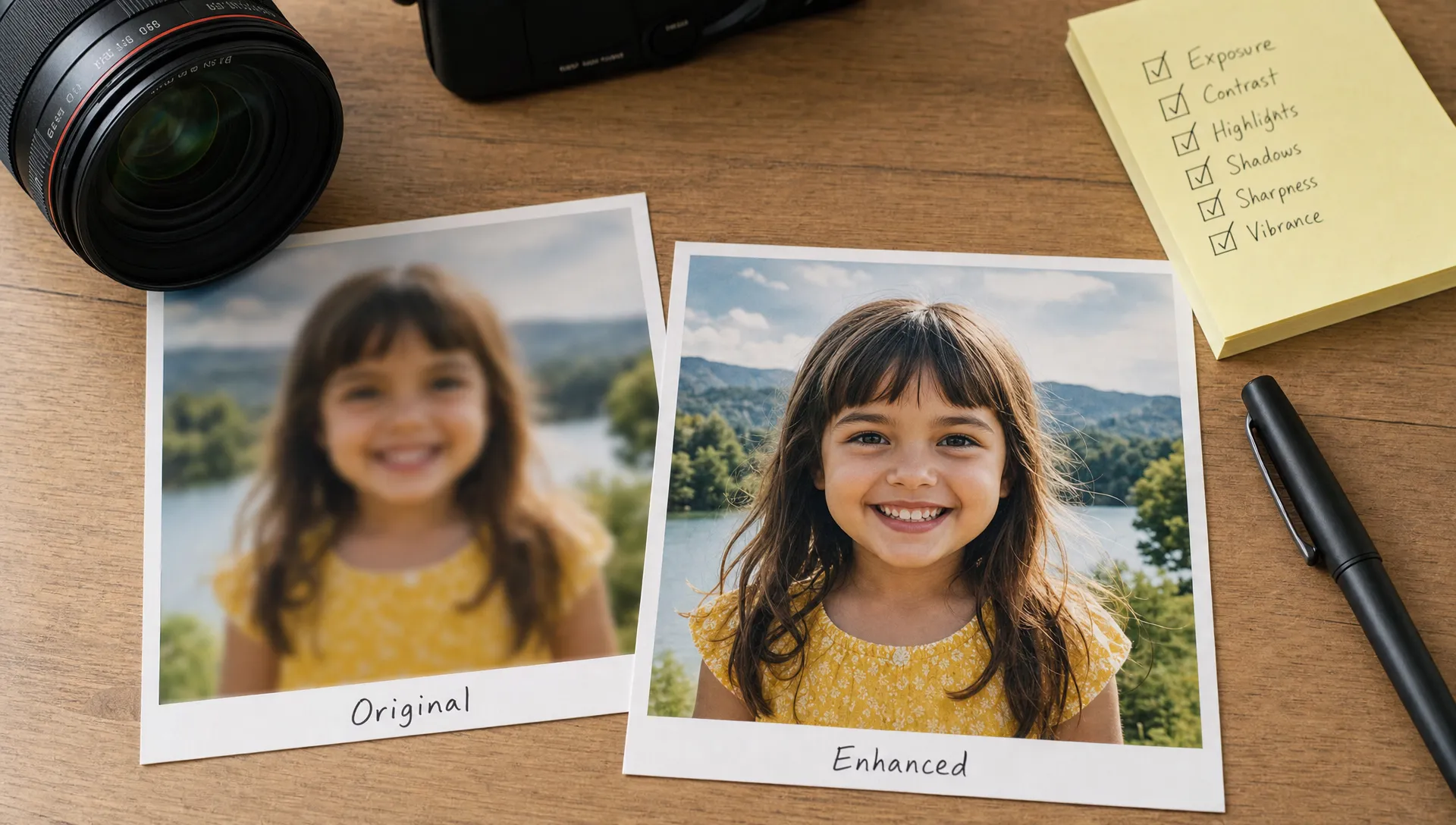
- Check the preview before downloading: Compare the before and after view to make sure the image looks sharper without becoming unnatural.
- Inspect faces, text and high-contrast edges: These areas reveal over-sharpening, halos or invented-looking detail first.
- Download the enhanced version at the right size: If you need a larger image, use a tool that can improve clarity and resolution together.
- Use manual editing only when needed: If the AI result is close but not perfect, a light manual touch-up is faster than editing the whole photo from scratch.
This hybrid approach is often the most efficient: let AI handle the repetitive clarity work, then use manual editing only for the details that need human judgment.
Why AI feels faster even when the result still needs review
Some users compare AI and manual editing only by final output time. But the real speed difference includes mental effort. Manual editing asks you to make many small decisions, test them and undo them if the image starts to look worse. AI gives you a finished candidate quickly.
That changes the workflow. Instead of asking, “Which settings should I use?” the user asks, “Is this result good enough?” Reviewing an enhanced image is much faster than building the enhancement manually from zero.
This is one reason AI tools fit everyday image improvement so well. Most people do not need to become editors. They need a faster path from blurry to usable.
Frequently Asked Questions
Is an AI image enhancer always better than manual editing? No. It is usually faster for sharpening, unblurring and improving low-resolution images, but manual editing is better for precise retouching, creative color work and complex corrections.
Why is AI faster at enhancing blurry images? AI is faster because it analyzes blur, edges, texture and noise automatically, then applies multiple corrections in one workflow instead of asking the user to adjust every setting manually.
Can AI replace Photoshop or Lightroom? Not completely. AI enhancement can replace simple clarity fixes for many users, but professional editing software is still useful for advanced retouching, layer work, compositing and detailed color control.
Does faster AI enhancement reduce image quality? Not necessarily. A good AI tool can improve clarity quickly, but the result should still be reviewed for halos, unnatural texture, distorted text or over-sharpened details.
Do I need to install software to use an AI image enhancer? Not with browser-based tools like ImageSharpen. You can upload supported image files online, preview the improvement and download the enhanced result without installing an app.
Enhance images faster with ImageSharpen
If you need to sharpen a blurry photo, unblur an image or boost resolution without learning manual editing software, ImageSharpen gives you a faster browser-based workflow. It supports JPG, PNG and WEBP files, allows uploads up to 20MB and provides a before and after preview so you can judge the result before downloading.
Manual editing still has its place, but for everyday clarity fixes, an AI image enhancer is faster because it turns a complex editing process into a simple upload, preview and download workflow.