
A good portrait enhancement should make the face look clearer, not smoother than real life. If a photo enhancer sharpens the eyes but turns cheeks into plastic, the image may look edited even when the lighting and pose are strong.
That is why natural skin texture matters. For profile photos, headshots, creator images, dating app pictures and personal portraits, the goal is usually simple: restore clarity, improve resolution and keep the person recognizable. You want pores, fine lines, freckles, facial hair and natural highlights to remain part of the image, not get painted over by a heavy beauty filter.
A free online photo enhancer like ImageSharpen is useful when you need a fast browser-based fix for a soft portrait. It can sharpen blurry images, unblur photos online and boost resolution without requiring a sign-up or software install. The key is to use enhancement in a way that restores detail instead of chasing a fake flawless finish.
Natural Skin Texture Is Part of a Good Portrait
Skin is not supposed to look like a flat surface. Real faces have tiny variations in tone, texture and light reflection. In a sharp portrait, you can often see detail around the eyes, eyelashes, brows, hairline, lips and fabric near the face. Those details help the image feel believable.
When enhancement removes too much texture, the portrait can feel off even if the image is technically cleaner. A face may look waxy, the cheeks may lose natural detail or the forehead may appear blurred while the eyes look overly crisp. This imbalance is one of the easiest ways to spot an overprocessed photo.
Natural texture is especially important for professional and personal images where trust matters. A LinkedIn headshot should look polished but real. A dating profile photo should look like the person someone will meet. A creator profile image should look clear at small sizes without looking like a filter did all the work.
The best enhancement workflow respects the original photo. It improves softness, compression and low resolution, then lets the real image remain visible.
Why Some Photo Enhancers Make Skin Look Artificial
Many editing tools were built around beautification, not restoration. They smooth noise, reduce blemishes and soften tonal changes across the face. That can work for a stylized look, but it often destroys the exact texture that makes a portrait feel natural.
The most common problem is aggressive smoothing. If a tool treats pores and fine hair as noise, it removes them. The result is a face that may look clean at first glance but strange on closer inspection. This is especially noticeable on cheeks, under-eye areas and the bridge of the nose.
Another issue is global sharpening. If the tool sharpens every part of the image with the same intensity, it can create bright outlines around the face, hair and clothing. These halos make the image look crunchy rather than clear. Portraits need more balanced detail recovery because skin, eyes, hair and background do not respond the same way to sharpening.
Compression can also make skin enhancement harder. Photos saved from messaging apps, social platforms or old backups may already contain blocky artifacts. If an enhancer sharpens those artifacts too aggressively, the result can look gritty. If it smooths them too much, the result can look fake. A good workflow starts with the best available file and avoids repeated edits.
What a Natural-Looking Photo Enhancer Should Improve
A natural portrait enhancement should focus on clarity, not face-changing effects. That means restoring visible detail where the original image supports it and avoiding the kind of processing that changes facial identity.
Here is a useful way to think about the balance:
| Portrait area | What enhancement should improve | What it should preserve |
|---|---|---|
| Eyes and lashes | Sharper edges, better definition and clearer catchlights | Natural eye shape and realistic contrast |
| Skin | Cleaner detail and less softness | Pores, freckles, fine lines and real tone variation |
| Hair and brows | More separation between strands | Natural softness without harsh outlines |
| Lips and facial hair | Better edge clarity and detail | Real texture without artificial gloss |
| Clothing near the face | Sharper fabric texture and seams | Balanced sharpness that does not distract from the face |
This is why a clarity-first photo enhancer is often better than a heavy retouching app for everyday portraits. A sharpening and resolution workflow helps the image look closer to the original scene, only clearer.
If you are trying to fix a photo that is generally low quality, not just a face, the same principles apply. You can also use this guide on how to improve image quality online without Photoshop for a broader workflow covering image clarity, resolution and downloads.
How to Enhance a Portrait Online While Keeping Texture Natural
You do not need a complex editing setup to improve a soft portrait. A simple process works best because every extra filter increases the chance of making the skin look unnatural.
- Start with the best original file: Use the photo from your camera roll, camera card or cloud backup if possible. Avoid screenshots of photos because they usually contain extra compression and lower resolution.
- Upload the image to a browser-based enhancer: ImageSharpen supports JPG, PNG and WEBP files up to 20 MB, so most phone portraits, profile images and downloaded photos are easy to process.
- Let the AI enhance the image: The tool is designed to sharpen blurry images and boost resolution in seconds, with processing that usually takes about 10 seconds depending on the file and connection.
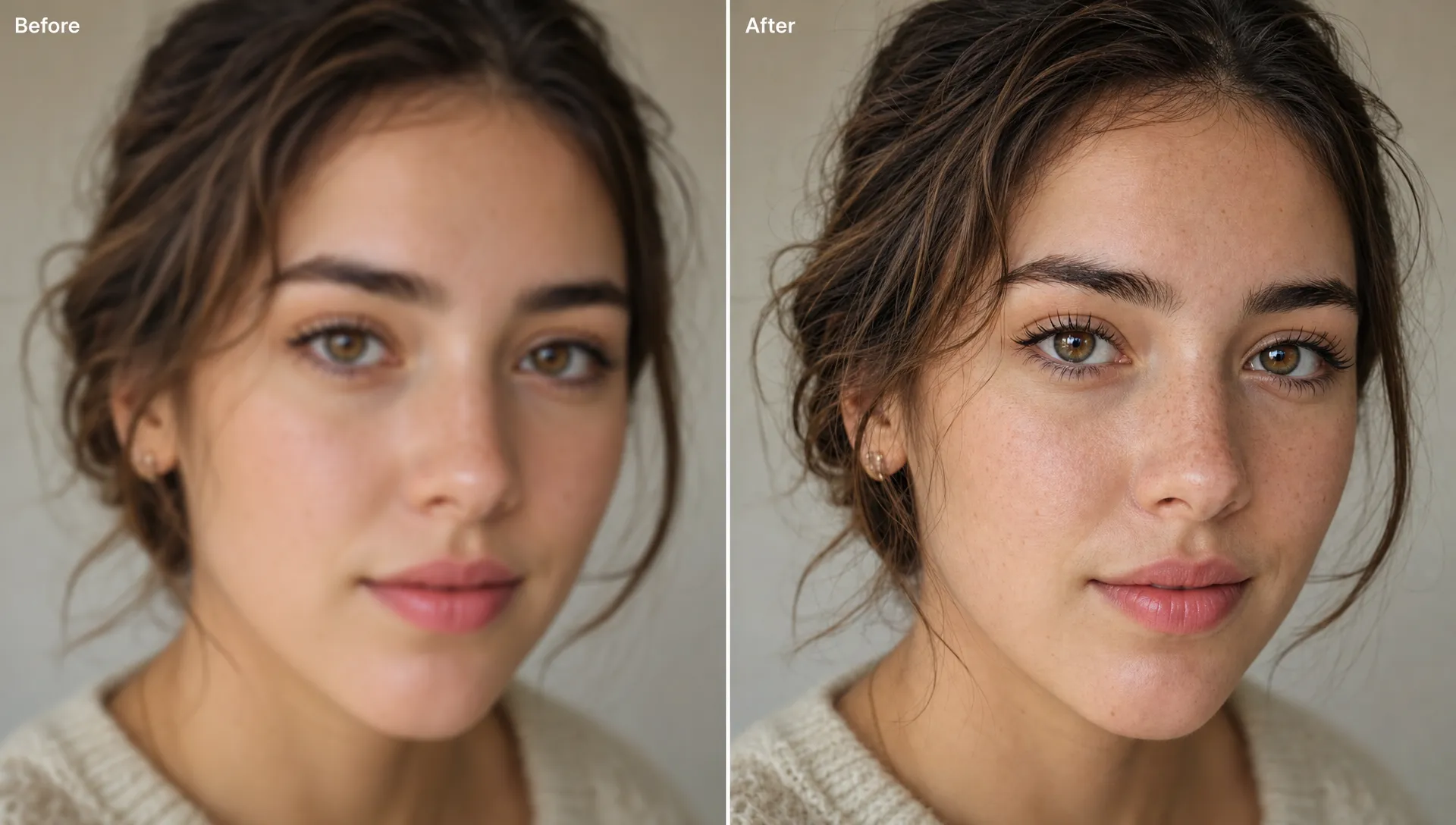
- Check the before-and-after preview carefully: Look at the eyes, hair and skin separately. The image should look clearer without making the face look painted or overly smooth.
- Download the enhanced version: Save the higher-quality result and use it for your profile, portfolio, personal archive or content post.
The preview step matters. Do not judge the photo only from a zoomed-out view. A portrait can look good as a thumbnail but too processed at full size. Zoom in enough to check the cheeks, nose, forehead and under-eye area. If those areas still have natural variation, the enhancement is doing its job.
Best Portraits to Enhance With a Free Online Tool
A free online photo enhancer is most useful when the image is worth saving but lacks sharpness or resolution. It is not limited to formal portraits. Many everyday images can benefit from a careful clarity boost.
Profile photos are a common use case. A slightly blurry profile picture may look acceptable on a phone but soft on a larger display. Enhancing it can make the eyes, hair and face outline clearer while keeping the photo natural.
Headshots can also benefit when they were taken in decent lighting but exported at a low resolution. If the expression and framing are good, an AI enhancer may help recover a cleaner version without needing a reshoot.
Older family photos are another good fit, especially when the image is soft but still contains recognizable detail. Enhancement can make faces easier to see while preserving the character of the original photo. Just remember that AI cannot know exactly what missing details looked like, so the best results come from images that already contain some usable information.
Creator thumbnails, author bios and personal brand images often need to look crisp at small sizes. In these cases, the goal is not extreme retouching. It is enough to make the face read clearly, sharpen the important details and avoid making skin look filtered.
For photos affected by camera shake, missed focus or general softness, you may also find this step-by-step guide on how to make a blurry photo clear useful.
How to Avoid the Plastic Skin Look
The plastic skin look usually happens when someone stacks too many edits. A portrait is enhanced, then smoothed, then sharpened again, then compressed by a social app. Each pass changes the file, and small artifacts become more visible.
Start by enhancing once. If the result is clearer and natural, stop there. Reprocessing the same image multiple times rarely adds real detail. It often increases halos, harsh edges and artificial texture.
Use the original file whenever possible. A photo sent through a messaging app may have been resized or compressed, especially if it was not sent as an original-quality file. The more detail the enhancer receives, the better chance it has of producing a natural result.
Be careful with beauty filters before or after enhancement. If a smoothing filter has already removed texture, a photo enhancer cannot reliably bring back the exact original pores and fine details. It may sharpen what remains, but it cannot perfectly reconstruct the unfiltered face.
Check skin and hair together. If the eyes look sharp but the skin has no texture, the image may feel unnatural. If the hair has hard bright outlines, the sharpening may be too strong. A balanced portrait should have clear focal points without making every pixel compete for attention.
What AI Photo Enhancement Can and Cannot Fix
AI enhancement is powerful, but it is not magic. It works best when the photo still contains useful structure. Slight blur, low resolution, mild compression and soft focus often respond well. A very tiny, heavily compressed or severely motion-blurred face is harder to restore accurately.
A photo enhancer can help with:
- Soft portraits where the eyes, hair and facial outline are visible
- Low-resolution photos that need a cleaner version for web use
- Compressed images that still have enough original detail
- Profile photos that look slightly blurry after resizing
It cannot guarantee perfect recovery when the original image is missing too much information. If a face is only a few pixels wide, out of focus beyond recognition or covered by strong motion blur, any enhanced version will involve more guesswork. For important professional work, a new photo may still be the better option.
The right expectation is simple: use enhancement to make a good photo clearer or rescue a slightly flawed one. Do not expect it to turn a badly damaged image into a studio-quality portrait every time.
Why Browser-Based Enhancement Is Convenient for Portraits
A browser-based tool is useful because portrait fixes are often quick tasks. You may need a clearer profile photo before uploading a resume, a sharper author image for a website or a better version of a family photo to share. Installing full editing software for one image is unnecessary in many cases.
ImageSharpen works directly in the browser, including on mobile browsers, and does not require an account. That makes it practical when you only need to upload, enhance, preview and download. The tool also supports a 4x resolution boost, which can help when a portrait is too small for its intended use.
The before-and-after preview is especially helpful for skin texture. It lets you compare the enhanced result against the original before downloading. If the face still looks like the same person and the skin still has natural detail, the enhancement is likely appropriate.
Quick Checklist for Natural Portrait Enhancement
Before using your enhanced image, review it with a simple quality check:
- The eyes and hair look clearer, but not outlined with harsh halos
- Skin still has pores, freckles, fine lines or natural tone variation
- The face shape and expression have not changed
- The background is cleaner without looking more important than the subject
- The image looks good both zoomed in and at the size where you will use it
This final check takes less than a minute and helps you avoid posting a portrait that looks overedited. Natural enhancement is not about removing every imperfection. It is about making the photo easier to see while keeping the person real.
Frequently Asked Questions
What is the best free online photo enhancer for natural skin texture? A good choice is a tool that focuses on sharpening, clarity and resolution rather than heavy beauty filtering. ImageSharpen lets you enhance portraits online for free, preview the result and download the improved image without signing up.
Will a photo enhancer remove pores and freckles? A clarity-focused enhancement should help preserve natural details, but results depend on the original file and the amount of blur or compression. Always check the before-and-after preview, especially around cheeks, forehead and under-eye areas.
Can AI fix a blurry selfie? AI can often improve a slightly blurry selfie if the face still has visible detail. If the selfie is extremely blurred, very small or heavily compressed, the result may be limited because the missing information cannot be perfectly recovered.
Does ImageSharpen work on phone portraits? Yes. ImageSharpen supports mobile browsers, so you can upload a portrait from your phone, enhance it online and download the clearer version without installing an app.
Which image formats are supported? ImageSharpen supports JPG, PNG and WEBP uploads up to 20 MB. These formats cover most phone photos, web images and exported portrait files.
Is an online photo enhancer better than Photoshop for portraits? It depends on the task. Photoshop offers detailed manual control for professional retouching, but an online enhancer is faster for simple sharpening, unblurring and resolution improvement without software or sign-up.
Try a Free Photo Enhancer That Keeps Portraits Looking Real
If your portrait is a little blurry, low resolution or too soft after being resized, you do not need to cover the face with filters. Use a free online photo enhancer that improves clarity while helping preserve the natural texture that makes the image believable.
Upload your JPG, PNG or WEBP to ImageSharpen, preview the before-and-after result and download a clearer version in seconds. No sign-up, no app install and no complicated editing workflow required.