
An image sharpener can turn a soft, slightly blurry picture into something cleaner, crisper and easier to use. It can improve a product photo, make text in a screenshot easier to read and give an old low-resolution image a better chance on modern screens.
It cannot, however, perform miracles. If the original file has no usable detail, the tool can only estimate what should be there. That estimate may look better, but it is not the same as recovering the original scene perfectly.
Understanding that difference helps you choose the right images to enhance, avoid overprocessing and get better results from any AI image sharpener.
How an image sharpener actually works
A digital image is made of pixels. When a photo looks blurry, the edges between objects, text and textures become less distinct. A traditional sharpening filter increases contrast around those edges, which makes the picture look crisper. This can help, but it can also create halos, grain and harsh outlines when pushed too far.
An AI image sharpener works differently. Instead of only increasing edge contrast, it analyzes patterns in the image and predicts clearer-looking detail. For example, it may recognize the soft edge of an eye, the outline of a product label or the texture of fabric and rebuild those areas in a more defined way.
That predictive step is what makes modern sharpening more useful than a basic slider in an editing app. It is also where the limit sits. AI can enhance likely detail from the pixels available, but it cannot know the exact serial number on a fully blurred label or the true face of a person who is only a smeared patch of color.
The best results usually come from images that are slightly soft, compressed, resized too many times or affected by mild camera shake. The worst candidates are images with extreme motion blur, missing pixels or heavy exposure problems.
What an image sharpener can usually fix
Slight blur from camera shake
A small amount of camera shake is one of the most common reasons photos look soft. This often happens in low light, when the shutter speed is slow or when the camera moves just as the photo is taken.
An image sharpener can often improve this type of blur because the main shapes are still there. Edges may be fuzzy, but the subject is recognizable. In a portrait, the eyes may look a little soft. In a product photo, the packaging may lack crispness. In a travel photo, buildings or trees may not have the definition you expected.
AI sharpening can tighten those edges and restore a cleaner impression of detail. It works especially well when the blur is mild and spread evenly across the image.
Soft focus
Soft focus happens when the camera focuses slightly in front of or behind the intended subject. This is different from motion blur because the image is not streaked. It simply lacks sharp detail.
A sharpener can help if the focus is only a little off. Faces, logos, food photos and product shots can often be made more presentable. If the subject is far outside the focus plane, the tool may still improve contrast, but it will not turn the image into a perfectly focused shot.
Low-resolution images that need more clarity
Small images often look bad when enlarged. A 400-pixel-wide photo may be fine as a thumbnail, but it can fall apart on a website banner, print layout or high-resolution display.
AI upscaling and sharpening can help by increasing resolution and improving edge detail at the same time. ImageSharpen, for example, includes a 4x resolution boost, which can make small images more usable without installing editing software.
This is most effective when the original image is low resolution but not heavily damaged. A small, clean logo or product photo usually responds better than a tiny photo that has already been compressed several times.
Compression softness and JPG artifacts
JPG compression reduces file size by discarding image data. At light compression levels, the difference may be hard to see. At heavier levels, images can look soft, blocky or muddy, especially around text and fine details.
An image sharpener can improve the perceived clarity of compressed photos by rebuilding edges and restoring local contrast. It may also make the image feel less flat. It cannot fully undo every compression artifact, especially if the image has visible blocks or color smearing, but it can often produce a cleaner result for web use.
Blurry screenshots and readable text
Screenshots can become blurry when they are scaled, shared through messaging apps or saved in low-quality formats. If the letters are still mostly recognizable, sharpening can often make them easier to read.
The key word is mostly. If text is mildly fuzzy, enhancement can help. If the characters have merged into vague shapes, no tool can guarantee an accurate reconstruction. For a more specific walkthrough, the guide on how to sharpen a blurry screenshot explains what to do when screen text loses clarity.
Product photos that look less professional than they should
Product photos do not need to be dramatically blurry to hurt conversions. Slight softness can make packaging, texture or small details look less trustworthy. A cleaner image can help a listing feel more polished.
AI sharpening is useful when the original product photo is well lit, properly framed and only lacks crispness. If the image is dark, cropped badly or hiding key details, sharpening should be treated as one improvement step, not a replacement for a better photo. If you are working with ecommerce images, this guide on how to make a product photo clearer without a reshoot is a practical next step.
What an image sharpener cannot fix
Detail that was never captured
The biggest misconception is that sharpening can recover information that does not exist in the file. It cannot. If a camera never captured a detail because the image was too blurry, too small or too compressed, the tool has no original data to restore.
AI may generate a plausible version of the missing detail. That can look convincing at a glance, especially for textures like hair, leaves, fabric or brick. It should not be treated as factual evidence. This matters for documents, ID photos, license plates, medical images and anything where accuracy matters more than visual improvement.
Extreme motion blur
Motion blur creates directional streaks. When a subject moves quickly during exposure, the camera records that movement as a smear. Mild motion blur can sometimes be reduced. Severe motion blur is much harder because the subject is stretched across multiple pixels and important edge information is lost.
If a face, sign or product label is dragged into long streaks, sharpening may make the streaks stronger rather than clearer. The result can look more dramatic, but not necessarily more accurate.
Images that are badly out of focus
If the focus missed by a small amount, sharpening can help. If the subject is completely out of focus, the image lacks defined edges for the tool to enhance.
This is why a slightly soft portrait may improve nicely, while a background person from a shallow depth-of-field photo will usually remain blurry. The camera intentionally blurred that background, so the missing detail was not recorded in the first place.
Blown highlights and crushed shadows
Overexposed areas that turn pure white have no detail left. Underexposed areas that turn pure black have the same problem. A sharpener can make nearby edges more defined, but it cannot recover texture from clipped highlights or shadows.
For example, if a white shirt is blown out into a solid white patch, sharpening may define its edge against the background, but it cannot reveal the weave of the fabric. If a face is hidden in deep shadow with no visible features, sharpening will not create a reliable face.
Heavy noise and repeated compression
Noisy images can sometimes look worse after sharpening because sharpening increases local contrast. Noise is also local contrast, so the tool may accidentally make grain, color speckles or artifacts more visible.
AI tools can reduce some roughness depending on the image, but there is a tradeoff. Too much smoothing can create waxy skin or plastic-looking textures. Too much sharpening can create harsh edges. A good result sits between the two.
Bad composition or missing context
Sharpening improves clarity, not meaning. It cannot fix a subject that is cropped out of frame, blocked by another object or photographed from the wrong angle. It also cannot make a low-quality image emotionally stronger if the underlying composition does not work.
This is especially relevant for marketing assets. A sharper photo may look more professional, but it will not fix poor lighting, awkward framing or an image that does not show the product clearly.
Quick reality check: can sharpening fix this?
Use this table to set expectations before you upload an image.
| Image problem | Can an image sharpener help? | What to expect |
|---|---|---|
| Slight camera shake | Yes | Edges can look cleaner and the subject can appear more defined |
| Mild soft focus | Yes | Faces, objects and text may become clearer if the original detail is still visible |
| Low resolution | Often | A 4x resolution boost can improve usability, especially for clean images |
| Light JPG compression | Often | Soft edges may improve, though old artifacts can remain |
| Blurry screenshot text | Sometimes | Works best when letters are still recognizable |
| Severe motion blur | Limited | Streaks may become sharper, but true detail is usually not recoverable |
| Fully out-of-focus subject | Limited | The image may look enhanced, but not accurately refocused |
| Blown-out white areas | No | Pure white pixels do not contain hidden detail |
| Cropped-out subject | No | A sharpener cannot restore what is outside the frame |
| Tiny face in the distance | Limited | AI may improve the look, but accuracy is not guaranteed |
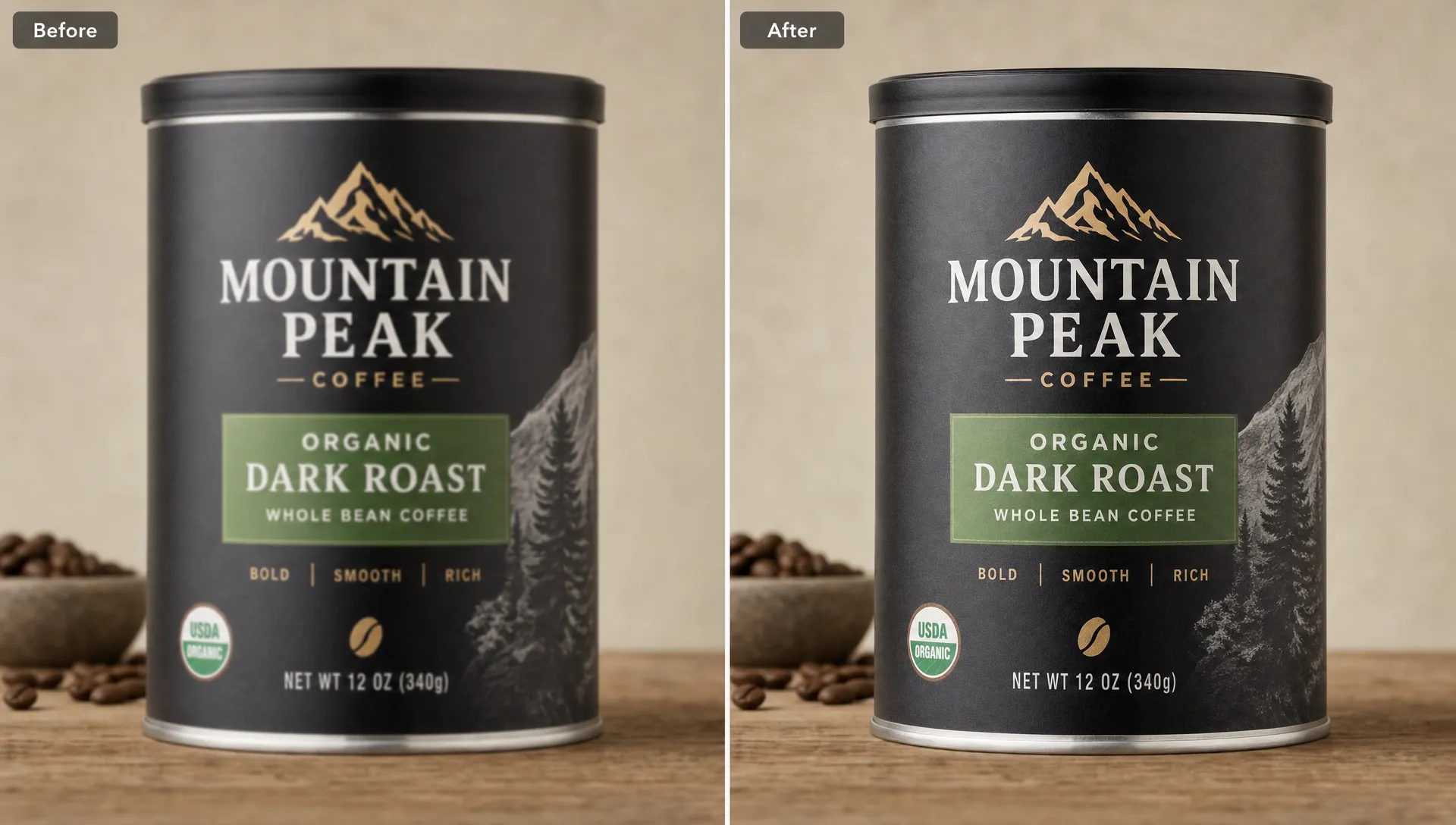
How to tell if your image is a good candidate
Before you sharpen, zoom to 100 percent and look at the important area of the image. Do not judge only from a tiny preview, because many images look acceptable when viewed small.
A good candidate usually has a recognizable subject, visible edges and at least some real texture. You should be able to tell where the important details begin and end, even if they look soft. The file should also be as close to the original as possible. A photo downloaded from a chat app, screenshotted and reuploaded several times will be harder to improve than the original camera file.
Look for these signs before processing:
- The subject is recognizable without guessing.
- Text is fuzzy but not completely merged together.
- Edges are soft, not smeared into long streaks.
- The image is not mostly pure black or pure white.
- The file has not been repeatedly resized or compressed.
If most of these are true, sharpening is worth trying. If most are false, the result may still look better, but the improvement will be limited.
A simple workflow for better sharpening results
The way you prepare and review an image matters. A strong workflow keeps you from overprocessing and helps you preserve the best version of the file.
- Start with the highest-quality original: Use the original camera image or exported design file when possible. Avoid screenshots of photos, social media downloads or files forwarded through messaging apps.
- Sharpen before heavy cropping: Cropping too early throws away pixels. If you need to crop, enhance the fuller image first, then crop the clearer result.
- Compare the before and after preview: Look at the important details, not just the overall punchiness. Sharper is not always better if it creates halos or strange textures.
- Check the image at its final size: A photo for a small product thumbnail does not need the same level of detail as a print asset or full-width website banner.
- Save a copy of the original: Keep the untouched file so you can retry with different settings or tools later.
If you want a step-by-step process rather than a technical overview, this guide to sharpen an image online for free walks through the upload, preview and download flow.
What to watch for after sharpening
A successful sharpened image should look clearer without looking artificial. The subject should have better definition, but skin should not look plastic, text should not look jagged and fine textures should not turn crunchy.
Common signs of overprocessing include bright outlines around objects, exaggerated pores, noisy shadows, unnatural fabric texture and distorted small text. If you see those artifacts, the image may have been pushed beyond what the source file can support.
For logos and graphics, inspect straight lines and curves carefully. Sharpening can make a logo look cleaner, but it can also emphasize jagged edges if the file is too small. For print use, a dedicated workflow may be needed because print quality depends on dimensions, resolution and file format, not sharpness alone.
Where ImageSharpen fits
ImageSharpen is designed for the practical middle ground: images that are usable but not as clear as they should be. You can sharpen blurry images, unblur photos online and improve low-quality pictures directly in the browser without creating an account or installing software.
The tool supports JPG, PNG and WEBP uploads up to 20MB, offers a before and after preview and provides high-quality downloads. It also works in mobile browsers, which is useful when you need to improve a photo from your phone quickly. Processing is designed to be fast, with results in about 10 seconds for typical images.
That makes it a good fit for everyday fixes: soft phone photos, ecommerce images, screenshots, social media graphics, old web images and small files that need a 4x resolution boost. It is not a forensic recovery tool, a replacement for a professional reshoot or a guarantee that every blurred detail can be recovered.
The right expectation is simple: use an image sharpener to improve clarity, not to create certainty where the original image has none.
Frequently Asked Questions
Can an image sharpener make any blurry photo clear? No. It can improve many slightly blurry or low-resolution images, but it cannot accurately recover details that were never captured or are completely destroyed by blur, compression or exposure problems.
Is AI sharpening better than a normal sharpening filter? Usually, yes. A normal filter mainly increases edge contrast, while AI sharpening can estimate clearer detail and improve resolution. The result still depends on the quality of the original image.
Can sharpening fix blurry text in a screenshot? Sometimes. If the letters are still recognizable, sharpening can make them easier to read. If the text has merged into blocks or smears, the tool may improve appearance without restoring accurate characters.
Will sharpening reduce image quality? It can if pushed too far. Over-sharpening may create halos, grain, jagged text or unnatural textures. Always compare the before and after view and inspect the areas that matter most.
What file should I upload for the best result? Upload the highest-quality version you have. Original JPG, PNG or WEBP files usually work better than screenshots, compressed social media downloads or images that have been resized several times.
Try sharpening the right kind of image
If your photo is slightly blurry, soft, compressed or too small, it is worth testing with an AI image sharpener before giving up on it. Use ImageSharpen to upload your image, preview the clearer version and download the enhanced result for free, with no sign-up required.