
You took a great photo. Sent it on WhatsApp. And by the time the other person received it (or you tried to save it) it looked like it was taken through a foggy window in 1998.
Frustrating doesn’t even cover it.
Here’s the thing: WhatsApp compresses every single image you send. It does this automatically to save data and speed up delivery. The result? Your crisp, clear photo becomes a pixelated mess. And once it’s compressed, you can’t just “uncompress” it the normal way.
But you can fix it. Here’s how.
Why Does WhatsApp Blur Photos in the First Place?
WhatsApp reduces image file size before sending. That’s a massive quality drop, and it shows.
It happens on both ends too. When you receive a photo on WhatsApp, it’s already been compressed by the sender’s app before it even reaches you. Saving it just saves the already-degraded version.
This is why screenshots of WhatsApp photos look even worse, you’re compressing a compressed image.
Method 1 — Use AI to Sharpen the Photo (Recommended)
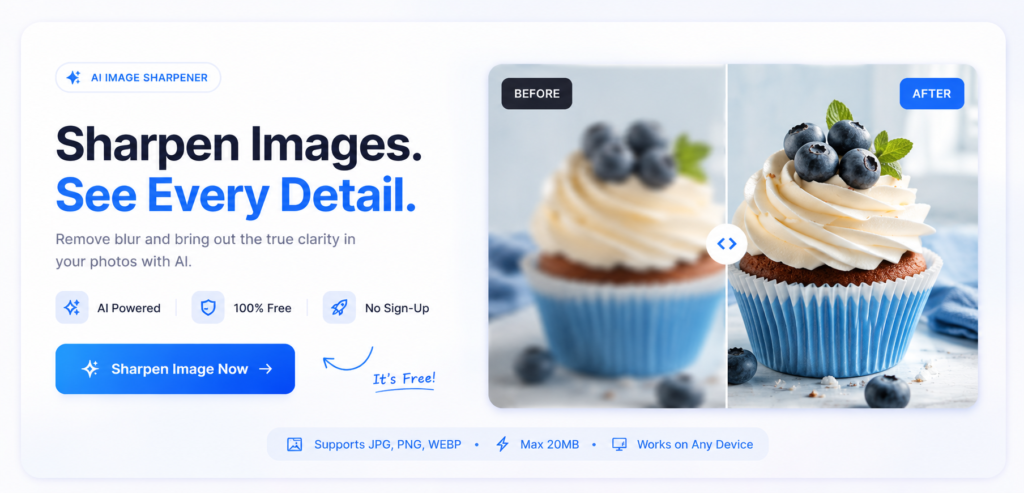
This is genuinely the best fix. AI image enhancement tools analyse the blurry photo pixel by pixel and reconstruct detail that compression destroyed. It sounds technical but takes about 15 seconds.
How to do it:
- Save the blurry WhatsApp photo to your phone or computer
- Go to ImageSharpen.com
- Drop the photo into the tool
- Hit Enhance Image
- Download your sharpened version
That’s it. The difference is usually pretty dramatic — especially on photos of faces, text, or anything with fine detail.
ImageSharpen uses AI to recover detail from compressed and blurry images, and it’s completely free with no sign-up required. It works on photos saved from WhatsApp, screenshots, old photos — anything.
Method 2 — Send as a Document Instead of a Photo
This one’s a prevention trick, not a fix, but worth knowing for next time.
When you send something as a document in WhatsApp (using the paperclip icon → Document), WhatsApp doesn’t compress it. The file arrives exactly as it left. No quality loss at all.
How to do it:
- Tap the attachment icon in your chat
- Select Document
- Browse to your photo and send it as a file
The person on the other end receives the original full-quality image. It’s a small habit change that saves a lot of frustration.
Method 3 — Request the Original from the Sender
If someone sent you a blurry photo, just ask them to resend it as a document (see Method 2 above). Most people don’t know WhatsApp compresses photos, so they’ll appreciate the heads up.
Alternatively, ask them to share it via Google Photos, iCloud link, or just AirDrop/email, anything that doesn’t run it through WhatsApp’s compression engine.
What About Fixing Blurry WhatsApp Photos on iPhone vs Android?
The process is the same on both. Save the photo to your camera roll or gallery, then upload it to ImageSharpen.com directly from your phone. The tool works on mobile too, no app download needed.
Can You Fix a Blurry WhatsApp Screenshot?
Yes. Screenshots are already lower resolution than the original, and if you’re screenshotting a WhatsApp photo, you’re compressing something that was already compressed.
The AI sharpening tool can still help significantly, it’ll recover edge detail and improve clarity.
The Honest Truth About WhatsApp Photo Quality
WhatsApp was built for messaging speed, not photography. If you care about photo quality, WhatsApp is genuinely not the right tool for sharing images. Use Google Photos shared albums, iCloud links, or just email for anything you want to look good.
But for photos that are already blurry and need fixing? ImageSharpen.com is the fastest free option out there. No account, no watermark, no nonsense, just a sharper photo in about 15 seconds.
Quick Summary
| Problem | Fix |
|---|---|
| Received a blurry WhatsApp photo | Upload to ImageSharpen.com |
| Want to prevent quality loss when sending | Send as a Document, not a Photo |
| Need the original quality back | Ask the sender to reshare via Drive or email |
| Blurry WhatsApp screenshot | AI sharpen tool helps — results vary |
Ready to fix your photo? Drop it into ImageSharpen.com – free, takes 15 seconds, no sign-up needed.