
A blurry photo can fail for two different reasons: it may lack edge clarity, pixel detail or both. An image upscaler and sharpener can help, but the best result depends on knowing whether the photo needs sharpening, upscaling or a combined AI enhancement workflow.
AI image sharpening and AI upscaling often get grouped together because both make photos look clearer. They solve different problems, though. Sharpening improves the definition of edges and textures that already exist in the image. Upscaling increases the pixel dimensions so the image can be used at a larger size without looking blocky or thin.
For everyday users, the distinction matters because the wrong fix can make a blurry image worse. Oversharpen a low-resolution photo and you may amplify noise. Upscale a soft photo without sharpening and you may get a bigger version of the same blur.
Sharpening vs upscaling: the quick difference
AI sharpening improves local contrast around edges. In plain language, it makes outlines, small textures and subject boundaries appear more defined. This is useful for soft portraits, blurry product shots, faint screenshots and images affected by mild camera shake.
AI upscaling increases resolution. A 600 pixel wide image can be enlarged to a higher pixel count, which gives the AI more space to reconstruct clean edges and smoother detail. This is useful when a photo is too small for printing, ecommerce, social media cropping or a large website banner.
The right image upscaler and sharpener does not simply make everything more intense. It analyzes where detail should be clearer, where noise should stay quiet and where the photo needs more pixels before sharpening can look natural.
| Photo problem | Best first fix | Why it works |
|---|---|---|
| Soft focus but decent size | Sharpening | The photo has enough pixels, but edges need clearer definition |
| Tiny image with visible pixels | Upscaling | More resolution is needed before detail can look smooth |
| Blurry and low resolution | Both | Upscaling adds pixel space, sharpening restores edge clarity |
| Noisy low-light photo | Gentle enhancement | Heavy sharpening can make grain more visible |
| Blurry text screenshot | Sharpening with care | Text edges need contrast without distortion |
What AI image sharpening changes in a blurry photo
AI sharpening looks for visual structures such as hairlines, text edges, facial features, fabric texture, product outlines and architectural details. Instead of applying one uniform filter across the whole image, modern AI enhancement can treat different regions differently.
That matters because blur is not evenly distributed. A face may be soft while the background is already busy. A screenshot may have readable icons but fuzzy text. A product photo may need crisp edges without making the surface look gritty.
If your photo has enough pixels but the subject looks soft, an image upscaler and sharpener should start with sharpening logic rather than enlargement. This avoids creating a larger file before the main clarity problem has been addressed.
AI sharpening is especially useful for:
- Slight camera shake from handheld photos
- Soft focus from older phones or compressed images
- Product edges that look dull on ecommerce pages
- Screenshots where text has lost definition
- Portraits where eyes, hair or clothing need more clarity
For a deeper explanation of the reconstruction process, ImageSharpen has a separate guide on how AI image sharpening rebuilds detail in soft photos. The key idea is simple: sharpening works best when there is still visual information for the AI to interpret.
What AI upscaling changes in a small photo
Upscaling is about size and pixel density. A low-resolution image may look acceptable as a small thumbnail, then fall apart when it is enlarged. Edges become stair-stepped, faces lose smoothness and backgrounds show compression artifacts.
Traditional resizing stretches the pixels that are already there. AI upscaling is more advanced because it predicts missing pixel information based on patterns in the image. It can make edges smoother, reduce the harsh blocky look of small files and prepare the photo for sharper output.
A 4x resolution boost, for example, can turn a small image into a more usable version for larger displays or downloads. This does not mean the AI recovers the original camera file. It creates a cleaner, higher-resolution interpretation of the image.
Upscaling is usually the better starting point when the photo is visibly small, pixelated or too compressed to crop. If the image is already large but looks hazy, sharpening will usually matter more than pixel count.
When an image upscaler and sharpener is better than one fix alone
Many blurry photos need both steps because blur and low resolution often appear together. This happens when images are downloaded from messaging apps, copied from social platforms, saved from old websites or cropped too aggressively.
A combined workflow is useful when the photo looks small and soft at the same time. Upscaling gives the AI more room to represent edges. Sharpening then makes those edges and textures more readable. Used carefully, the combination can make a photo look clearer without giving it the harsh look of an old sharpening filter.
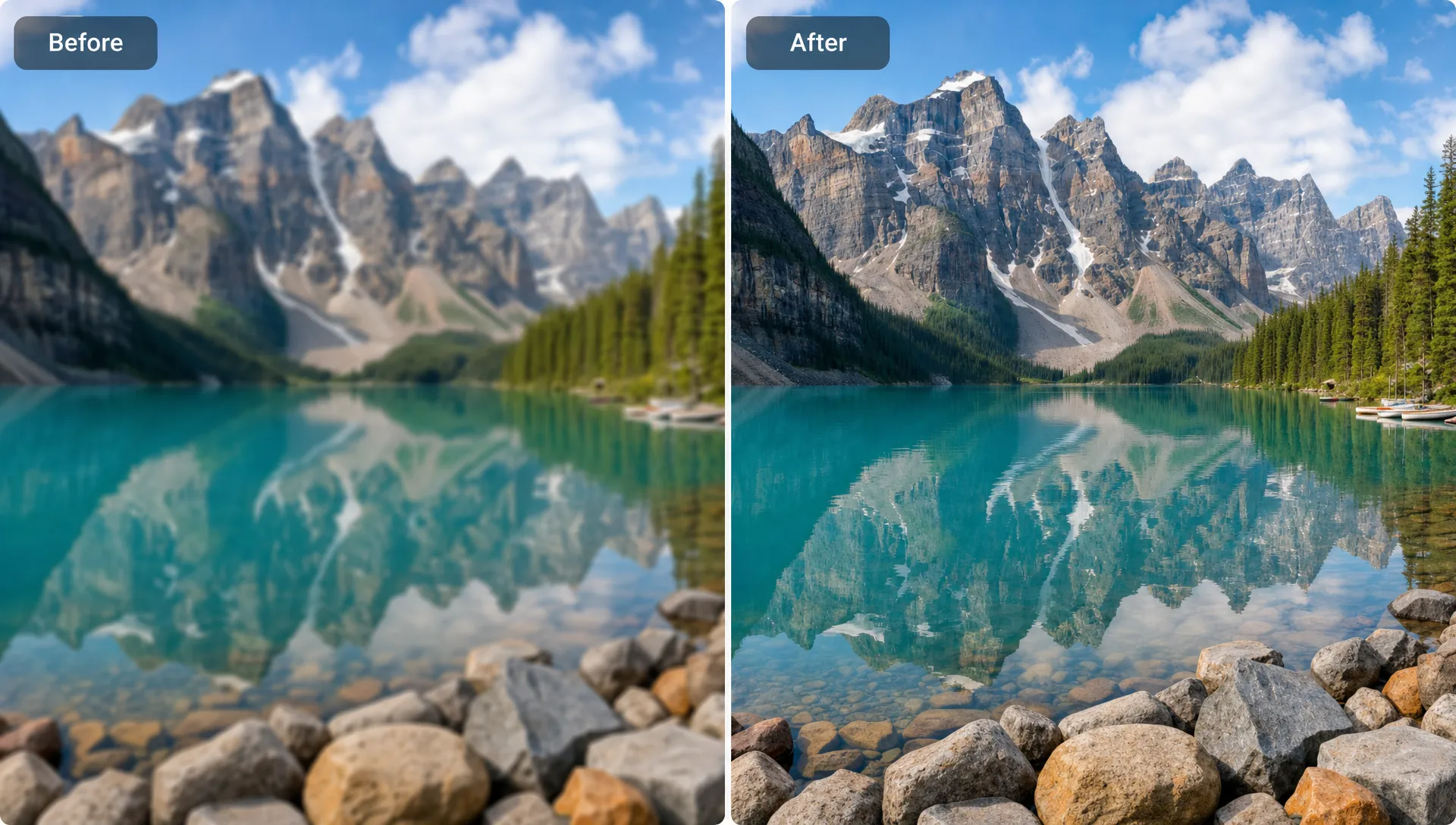
The order is not always identical. Some tools handle the sequence automatically, while manual editors may test both approaches. In a browser-based tool such as ImageSharpen, the goal is to simplify that decision so users can upload a JPG, PNG or WEBP file and compare the before and after preview without installing software.
This is helpful when speed matters. If you only need a clearer photo for a listing, profile, document preview, product page or social post, a fast AI workflow is usually more practical than opening a full editing suite.
Which should come first: sharpen, upscale, or both?
Start by viewing the image at the size you actually need. A photo can look blurry at 300 percent zoom but perfectly usable in a small card layout. Judging at the final display size prevents overediting.
A practical image upscaler and sharpener workflow is to inspect the original at 100 percent, identify the main weakness, enhance once and compare the result before making another change. If the image becomes gritty, crunchy or unnatural, the sharpening is too aggressive. If it still looks soft but now has enough size, a second pass may help only if the tool supports it cleanly.
Use sharpening first when the photo is large enough but lacks definition. This applies to most modern phone photos that are slightly out of focus, softly compressed or affected by mild motion blur.
Use upscaling first when the file is too small for its intended use. A profile photo, logo screenshot or product image may need more resolution before any sharpening can look natural.
Use both when the photo is low-resolution and soft. This is common with saved social media images, old digital photos and heavily compressed screenshots. If you want a browser workflow for size improvement, ImageSharpen also explains how to use a free AI image upscaler without sign-up.
Real-world examples: choose the right fix
The best choice depends less on the file format and more on the final use. A blurry family photo, a product listing and a construction portfolio image all have different clarity needs.
For mixed problems, an image upscaler and sharpener saves time because it can improve resolution and clarity in one workflow. That is useful for small businesses that need presentable visuals but do not have a dedicated retoucher.
A local service business, for example, may rely on portfolio images where surface quality and clean edges matter. A professional painter in Copenhagen and North Zealand benefits from photos that show smooth walls, crisp trim and finished rooms clearly, just as an ecommerce seller needs product edges to look sharp.
| Use case | Main issue | Recommended approach |
|---|---|---|
| Old family photo | Soft detail, possible low resolution | Upscale gently, then sharpen faces and edges |
| Product image | Dull outlines or small file size | Sharpen if large enough, combine if cropped |
| Real estate room photo | Slight blur, texture loss | Sharpen carefully to keep surfaces natural |
| Social media download | Compression and reduced size | Use both upscaling and sharpening |
| Screenshot | Fuzzy text or UI edges | Sharpen text edges without heavy smoothing |
Limits: what neither method can fully restore
AI enhancement is powerful, but it is not magic. If a face is smeared by severe motion blur, if text is completely unreadable or if a subject is hidden in darkness, the AI has too little reliable information to restore with certainty.
A good tool can create a clearer and more usable version, but it should not invent critical details for legal, medical, identity or evidentiary uses. For those cases, keep the original file and treat the enhanced version as a visual aid rather than proof.
The same applies to extreme compression. When a file has been saved repeatedly at low quality, block patterns and color banding may compete with real detail. Sharpening can accidentally enhance those artifacts. Upscaling can make them more visible if the tool does not control noise.
If you are unsure why a file will not improve, this guide on why AI cannot clear every blurry image explains the most common limitations.
How to test your photo with ImageSharpen
The simplest way to choose between sharpening and upscaling is to test the image and compare the preview. ImageSharpen runs in the browser, supports JPG, PNG and WEBP files, accepts uploads up to 20MB and does not require a sign-up or software install.
Use ImageSharpen as a quick image upscaler and sharpener when you need a clearer version of a blurry photo in seconds. Upload the image, wait for the AI enhancement, check the before and after view, then download the improved result if it looks natural.
For best results, start with the highest-quality version of the photo you have. Avoid sending screenshots of screenshots, heavily cropped copies or images saved multiple times through messaging apps. Each extra compression step removes information the AI could otherwise use.
Also compare the enhanced image at the final size. A photo for a website thumbnail does not need the same treatment as a large print or hero banner. The goal is clarity, not maximum sharpness at all costs.
Frequently Asked Questions
Is sharpening the same as upscaling? No. Sharpening improves edge clarity and texture definition, while upscaling increases the pixel dimensions of an image. Many blurry photos benefit from both, but they are separate processes.
Should I upscale a blurry photo before sharpening it? Upscale first if the photo is too small or pixelated for its final use. Sharpen first if the image is already large enough but looks soft or slightly out of focus.
Can AI make any blurry photo clear? No. AI can often improve mild blur, soft focus and low-resolution images, but it cannot perfectly recover detail that was never captured or has been destroyed by severe motion blur or compression.
Does upscaling reduce image quality? Basic resizing can reduce perceived quality because it stretches existing pixels. AI upscaling is designed to create a cleaner larger version, but the result still depends on the quality of the original file.
What file types can I enhance with ImageSharpen? ImageSharpen supports JPG, PNG and WEBP uploads, with mobile browser support and high-quality downloads after enhancement.
Try the right fix for your blurry photo
If your image looks soft, small or both, do not guess which edit it needs. Try ImageSharpen in your browser, compare the before and after preview and download a sharper, higher-resolution version when the result looks right.